OtherEN
Intro to Git — Snapshots, Branches & Sharing
 WorkshopyOfficial
10 stepsQuiz9 interactiveDiagram
gitversion controlbeginners
Used by 1 teacherBeginner
Git merge conflict exercises: make a conflict on purpose, read the markers, resolve it, and compare merge with rebase in interactive steps.
WorkshopyOfficial
39 lessons · used by 2 teachers
Sign in to copy it to your workspace. It’s free.
11 steps · 2 quizzes · open any step, or read it here
In this lesson you practise Git branching and merge conflicts with hands-on exercises: you make a conflict on purpose, read its markers and resolve it. You also see when Git merges by itself, and how rebase differs from merge.
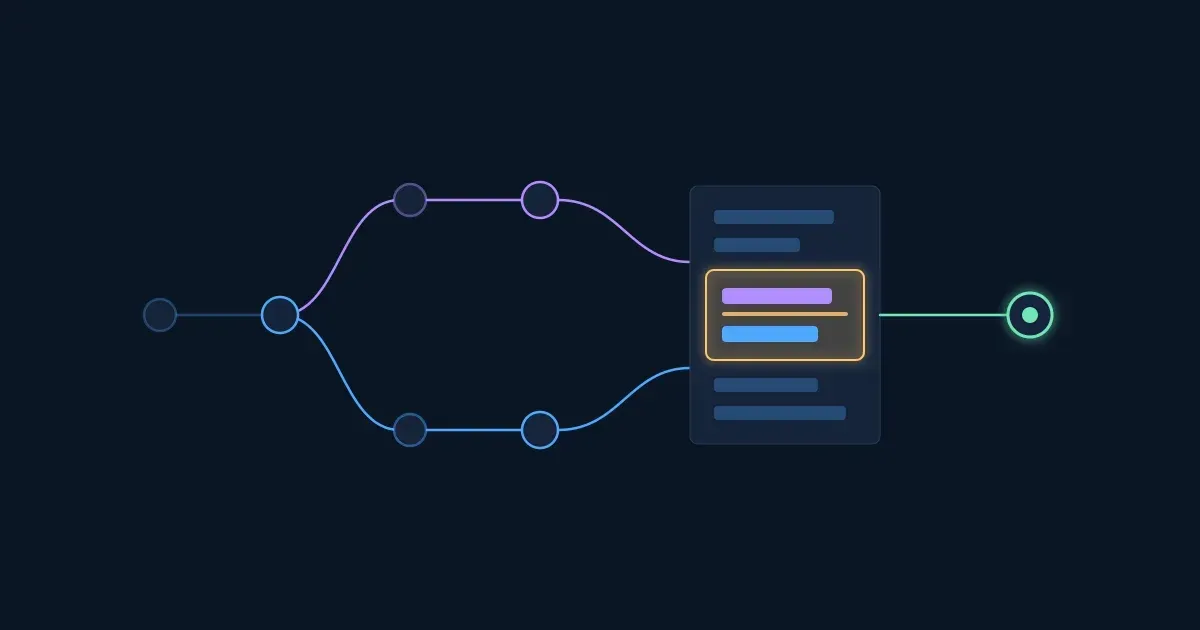
Here is the whole story in six moments: two branches change the same line of a price list, the merge stops, and someone decides.
Interactive · A merge conflict, start to finish — try it in the lesson
In this lesson you'll:
<<<<<<<, ======= and >>>>>>>, then resolve, stage and commitIt takes about an hour: 30 minutes of ideas you can play with, then a real conflict in your own terminal, practice exercises and a final quiz.
Takeaway: a conflict is not an error. It is Git asking a person to decide.
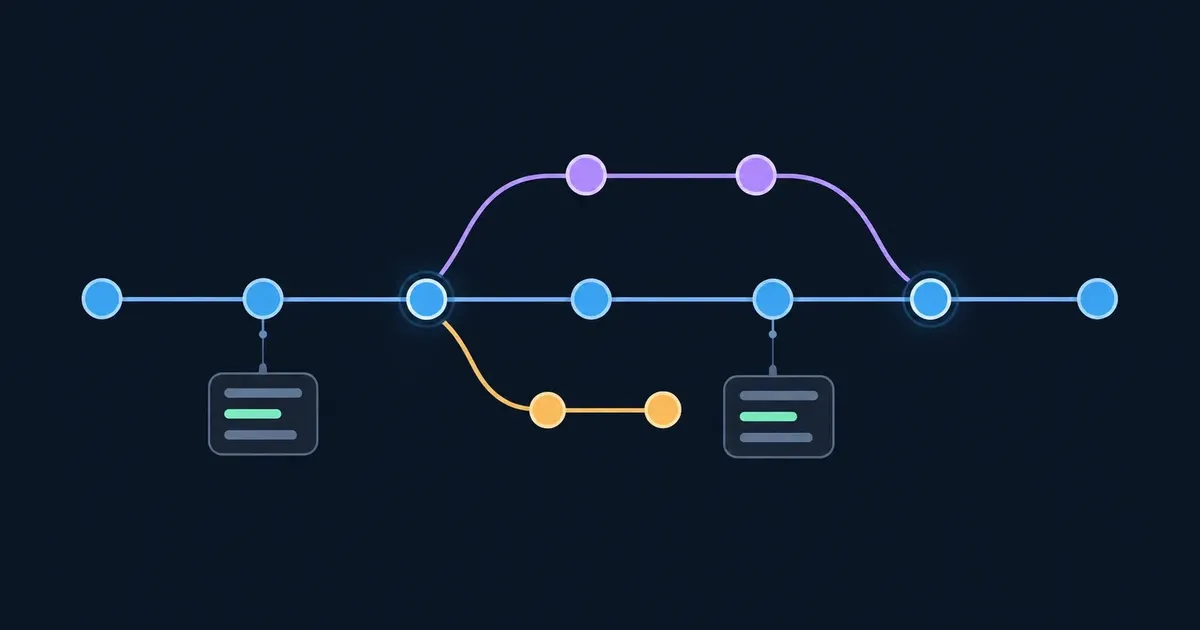
Every commit points back to the commit before it. A branch is not a copy of your files: it is a small, movable label that names one commit. HEAD names the branch you are on.
When you commit, only the branch HEAD points at moves forward. That one rule explains everything else in this lesson.
Try it: make two commits on main, create feature, commit on it, switch back to main and commit again. Watch which label moves each time.
Interactive · Branches are labels that move — try it in the lesson
What did git switch -c feature copy? Nothing: it wrote one new label.
Takeaway: a commit moves only the branch you are on. Two branches that both moved have split, and that is when merging gets interesting.
git merge feature brings feature's commits into the branch you are on. Git does one of two things.
Try it: merge with the switch off, then reset, turn it on and merge again.
Interactive · Fast-forward versus a three-way merge — try it in the lesson
Only a three-way merge can conflict, because only then did two sides change things independently.
Takeaway: no new work on your branch means a fast-forward; new work on both sides means a merge commit, and possibly a conflict.
In a three-way merge Git looks at each change against the base. A change made on one side only is taken automatically. A conflict happens when both sides changed the same lines, or lines right next to each other, in different ways.
Try it: pick which line each branch changes, then merge. Try the same line, two neighbouring lines, and lines two apart. Then turn on "exactly the same new text".
Interactive · Clean merge or conflict? — try it in the lesson
What you just saw is how Git's default merge works:
| Both sides changed… | Result |
|---|---|
| different lines with at least one line between them | clean merge |
| the same line, differently | conflict |
| neighbouring lines | conflict |
| the same line, identically | clean merge |
Takeaway: Git merges text line by line. It never knows what your code means, so it stops whenever two edits touch.
When a merge conflicts, Git stops halfway, writes both versions into the file between markers, and waits. Each conflicted part looks like this:
<<<<<<< HEAD
Price: 12
=======
Price: 8
>>>>>>> discount
<<<<<<< HEAD and =======: your side, the branch you are on.======= and >>>>>>> discount: their side, the branch you are merging in.Try it: press Explain line by line, then turn on the base.
Interactive · What each marker means — try it in the lesson
Seeing the base makes conflicts easier to judge: you see what each side changed, not just where they ended. To always get it:
git config --global merge.conflictStyle zdiff3
(zdiff3 needs Git 2.35 or newer; on older versions use diff3.)
Takeaway: the top half is yours, the bottom half is theirs, and the markers themselves must all be gone before you finish.
Resolving means editing the file until it says what it should — sometimes one side, sometimes the other, often a line you write yourself. Then:
git add prices.txt tells Git the conflict is resolved.git commit writes the merge commit (Git suggests the message).Try it: resolve both conflicts the way the team agreed, then stage and commit. Also try git add before you are done.
Interactive · Resolve a conflict the team agreed on — try it in the lesson
Your exits while a merge is stopped:
| Command | What it does |
|---|---|
git merge --abort |
puts your branch and files back as they were before the merge |
git checkout --ours prices.txt |
takes your side of the whole file (then git add) |
git checkout --theirs prices.txt |
takes their side of the whole file (then git add) |
git status |
lists the files that still need you, under "Unmerged paths" |
Takeaway: git add does not check your file. Search for <<<<<<< before you stage it.
Now in your own terminal. These commands build a tiny repository and make two branches change the same line. Watch the block first if you like, then run them yourself.
Interactive · The lab, one command at a time — try it in the lesson
git init -b main conflict-lab && cd conflict-lab
printf 'Plan: Basic\nPrice: 10\nSeats: 5\n' > prices.txt
git add prices.txt && git commit -m "Add price list"
git switch -c discount
printf 'Plan: Basic\nPrice: 8\nSeats: 5\n' > prices.txt && git commit -am "Discount the basic plan"
git switch main
printf 'Plan: Basic\nPrice: 12\nSeats: 5\n' > prices.txt && git commit -am "Raise the basic price"
git merge discount
git status
If Git asks who you are, set your name and email once with git config --global user.name "Your Name" and git config --global user.email you@example.com.
Check your work · Paste the line `git status` prints under "Unmerged paths". — check it in the lesson
Then finish the merge: open prices.txt, keep Price: 8, delete the markers, and run:
git add prices.txt
git commit -m "Merge discount: keep the discount price"
git log --oneline --graph
Done looks like: the graph shows two lines joining in your merge commit, and git status says "nothing to commit, working tree clean".
Four questions on what you have seen so far.
Question 1. What is a branch in Git?
Question 2. When does git merge make a merge commit?
Question 3. main changes line 3 of a file and feature changes line 4. What does git merge do?
Question 4. In a conflict, which side sits between <<<<<<< HEAD and =======?
git rebase main is the other way to bring work together. Instead of joining two lines with a merge commit, it lifts your commits off and replays them, one by one, on top of main's newest commit. The replayed commits are new commits with new ids.
Try it: merge once, reset, then rebase and merge again.
Interactive · Merge versus rebase, side by side — try it in the lesson
| Merge | Rebase | |
|---|---|---|
| History | as it happened, with a merge commit | one straight line |
| Your commits | keep their ids | are rewritten with new ids |
| Conflicts | resolved once, in the merge commit | resolved commit by commit |
| Safe on a shared branch | yes | no |
The rule teams follow: rebase only commits that nobody else has yet, such as your local branch before you share it. Rewriting commits a teammate already pulled leaves them with two copies of the same work.
Takeaway: merge records history; rebase rewrites it to read straight. Both bring in the same changes.
A rebase can stop on any commit it replays. You resolve it the same way, with two differences:
git add, run git rebase --continue, not git commit. Git makes the commit and replays the next one.--ours is main's side (plus the commits replayed so far), and --theirs is your commit being replayed.git rebase --abort puts everything back as it was before the rebase. git rebase --skip drops the commit that conflicts — rarely what you want.
Try it: rebase, resolve, continue. Then reset and try abort.
Interactive · A rebase that stops halfway — try it in the lesson
Takeaway: in a rebase, continue instead of commit, and remember that "theirs" means your own commit.
Conflicts are cheaper to prevent than to fix. The longer a branch lives away from main, the more of main it can collide with.
Try it: move the days slider, then add teammates.
Interactive · How branch age raises the chance of a conflict — try it in the lesson
Habits that keep merges boring:
git pull on main, then merge or rebase it into your branch while the differences are small.Takeaway: you can't avoid every conflict, but short branches make each one small.
Six short exercises. Check each one; a hint costs nothing.
Plan: Basic
<<<<<<< HEAD
Price: 12
=======
Price: 8
>>>>>>> discount
Seats: 5
<<<<<<< HEAD
Support: email and chat
=======
Support: email and phone
>>>>>>> discount
Six questions on the whole lesson.
Question 1. You edited a conflicted file and removed the markers. Which command marks it resolved?
Question 2. Which are true of git rebase main? (pick all that apply)
Question 3. When is a rebase a bad idea?
Question 4. You resolved a conflict with "keep both" and the file now says "Support:" twice. What went wrong?
Question 5. What does git merge --abort do?
Question 6. Which habit makes conflicts rarer on a team?
Workshopy shares this lesson under CC BY 4.0. Anyone may use and change it, with credit to you. Anyone can learn it here, free. A copy in your workspace is yours to change and run live; your students never need an account.
Version 1Current
· First published
Copies are made from the current version. A copy you already have doesn’t change.
WorkshopyOfficial10 stepsQuiz9 interactiveDiagram
gitversion controlbeginners
WorkshopyOfficial16 steps2 quizzes15 interactiveDiagram
workshopyproduct touronboarding
WorkshopyOfficial9 steps2 quizzes8 interactive
ai-teachersai for teacherslesson planning
WorkshopyOfficial11 steps2 quizzes10 interactive
recursionprogrammingpython
WorkshopyOfficial11 steps2 quizzes10 interactive
graphsalgorithmsdijkstra
WorkshopyOfficial11 steps2 quizzes12 interactive
binarycomputer sciencebits and bytes
Comments
No comments yet. Be the first to say how it went.