OtherEN
Intro to Git — Snapshots, Branches & Sharing
 WorkshopyOfficial
10 stepsQuiz9 interactiveDiagram
gitversion controlbeginners
Used by 1 teacherBeginner
A live, interactive product tour of Workshopy for new users. It runs as a real Workshopy session, so the audience experiences the product as participants while…
WorkshopyOfficial
78 lessons · used by 2 teachers
Sign in to copy it to your workspace. It’s free.
16 steps · 2 quizzes · open any step, or read it here
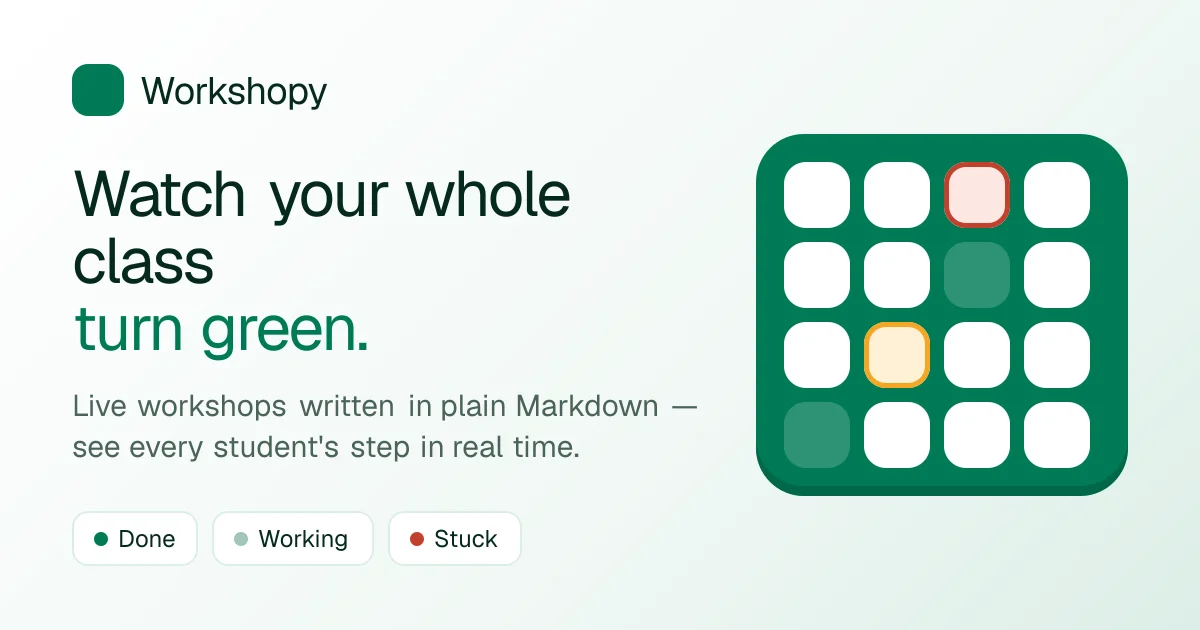
You just joined a live Workshopy session — with a 6-character code, no account and no install. Everything you'll see today (these steps, the animations, the quizzes) is a Workshopy template, and the presenter is watching the room's progress live.
Try it now: tap Done at the bottom of your screen. On the presenter's screen, your tile turns green. 🟢
Made for teachers, bootcamp instructors, corporate trainers and workshop facilitators — anyone who teaches step by step.
| Part | What you'll see | Steps |
|---|---|---|
| 1 | What Workshopy is, in four ideas | 1–2 |
| 2 | Building a template: steps, content, quizzes, AI and settings | 3–9 |
| 3 | Running a session: joining, the live dashboard, broadcasts and the report | 10–17 |
| 🏁 | Your turn: run your first workshop | 18 |
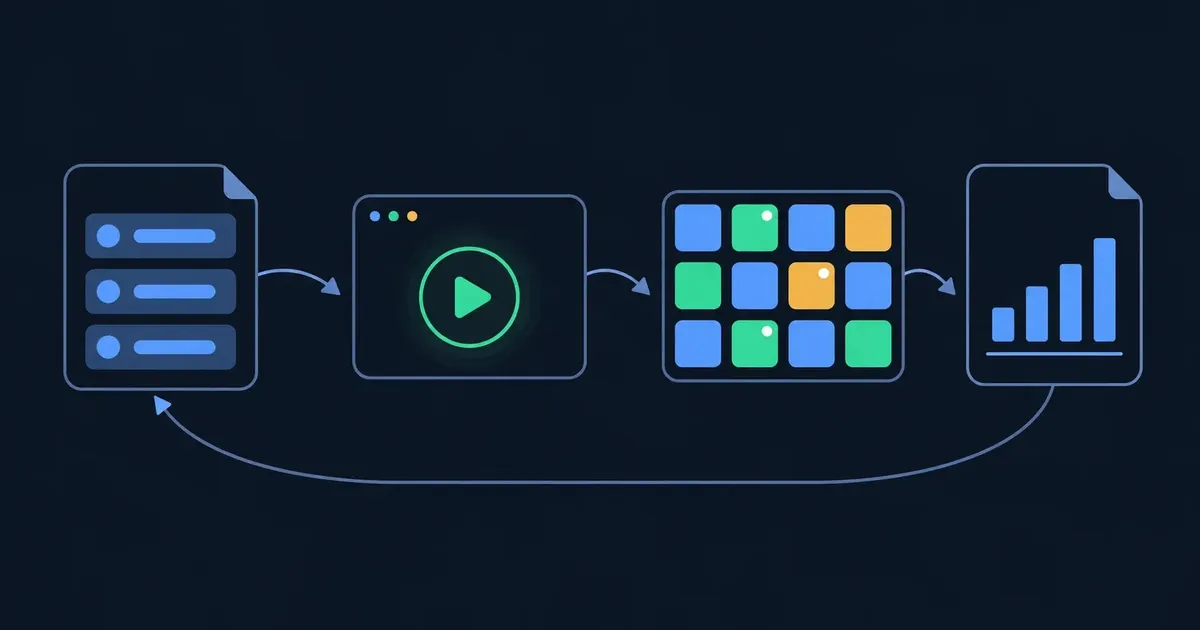
Press Auto-play, or click any of the four stages.
Interactive · The Workshopy loop in four stages — try it in the lesson
Four words come up again and again:
| Term | What it is | Think of it as |
|---|---|---|
| Template | One Markdown document that holds the whole lesson. It lives in your library. | A recipe |
| Step | One part of the lesson — what participants see at a time. Every # heading is a step. |
A line in the recipe |
| Session | A live run of a template with a specific group, with its own join code. | Cooking the recipe for tonight's guests |
| Report | The summary you get when a session ends: progress, quizzes and broadcasts. | The reviews after dinner |
When you press Start session, Workshopy takes a snapshot of the template's steps, and the session runs from that copy. That's why you can prepare next week's version while this week's session is live.
Try it: start a session, edit the template, then start another session. Which version did each one get?
Interactive · One template, many sessions — try it in the lesson
Fun fact: this very session is running from a snapshot. The presenter could edit the template right now and you wouldn't notice — until the next session.
Part 2 — Build a template
Sign up free (no credit card) and you land in your template library. There are two ways to start:
.md file — every # heading becomes a step.A built-in Sample workshop is also waiting in your library, ready to explore.
Walk through the editor with Next and Back, or click the numbers:
Interactive · A guided tour of the editor — try it in the lesson
The illustration is simplified — the real screen may be arranged a little differently, but every part is there.
The whole structure of a template comes down to one rule:
| You write | It becomes |
|---|---|
# Title (one hash and a space) |
A new step, named after the text |
#[quiz] Title |
A quiz step |
## Title and deeper |
A heading inside the step — not a new step |
Text before the first # |
The template description — hosts see it, participants don't |
# inside a code block |
Just code — not a step |
A tiny template looks like this:
Intro to Git — a short hands-on workshop.

# Welcome
Today we learn the basics of Git.

## What you need
A laptop with a terminal.

# Your first commit
Run the commands below, then press Done.
That's the whole format. It's standard Markdown, so what you import is what you can export — and any AI can write it.
Now play: edit the document and watch Workshopy split it into steps live. Try all three examples.
Interactive · Live Markdown splitter: where each step starts — try it in the lesson
Question: the "Trap" example has four lines that start with #. Why are there only two steps?
A step is standard GitHub-flavored Markdown, and the preview is exactly what participants see. Switch between the tabs:
Interactive · What you write vs. what participants see — try it in the lesson
A mermaid block becomes a diagram. Here's the Workshopy loop:
Diagram · see it in the lesson
Turn a step into a graded quiz by writing #[quiz] instead of #. Every ## is a question, and the options are a task list:
#[quiz] Quick check

## What starts a new step?
- [x] A line that starts with # and a space
- [ ] A line that starts with ##
- [x] marks a right answer, - [ ] a wrong one.[x] = single choice. Two or more = multiple choice.[x] until you publish the results.Build a quiz: change the questions, add one and watch the checks. Host view shows what participants can't see.
Interactive · Quiz builder — try it in the lesson
Question: what would you change to make the first question multiple choice?
A step can hold a live demo — an animation, a simulation, or a diagram that reacts to buttons. It's a code block tagged interactive with a title, holding HTML, CSS and JavaScript. Every demo in this tour is one of those.
Workshopy has an MCP server, so Claude, ChatGPT, Codex or Claude Code can read and edit your templates: turn notes into steps, add a quiz, rewrite a step or build an animation.
Pick a request and watch what happens:
Interactive · From one sentence to a step in your lesson — try it in the lesson
| App | How to connect |
|---|---|
| Claude | Settings → Connectors → Add custom connector, with https://workshopy.io/mcp |
| ChatGPT | Developer mode (Settings → Apps → Advanced), then create an app with the same address |
| Codex / Claude Code | One mcp add command in the terminal |
In Workshopy, Connect your AI at the foot of the sidebar shows the address and the steps for each app.
What AI can't do: start or end a class, or see participants, answers or reports. It only works on your templates and media library. And if you edit the same template at the same time, its edit is refused — nothing of yours gets overwritten.
💡 Behind the scenes: this whole tour was built exactly this way — Claude wrote it through the Workshopy connection.
Every template has settings that shape how the lesson looks and behaves. They work in three layers:
| Layer | When | Example |
|---|---|---|
| 1. Template defaults | While writing the template | This tour starts presenter-paced |
| 2. Session overrides | When you start a session | Today's group works at its own pace |
| 3. Live changes | In the middle of a session | "Okay, everyone with me now" |
Play with the settings and watch the participant's screen change:
Interactive · Settings lab — try it in the lesson
Six quick questions on part 2. Answer on your own — the presenter will publish the results live.
Question 1. What creates a new step in a template?
Question 2. You wrote some text before the first heading. What happens to it?
Question 3. In a Git lesson, a code block contains the comment "# set your identity". What happens?
Question 4. What happens when you mark two right answers on one question?
Question 5. What's true about an interactive block? (pick all that apply)
Question 6. What can't a connected AI app do?
Part 3 — Run it live
Template ready? Time to teach.
That's exactly how you joined today's tour.
Press the button, then try Join QR on screen:
Interactive · Start session: from template to join code — try it in the lesson
On the participant's side it's short:
You did exactly this a few minutes ago. Now see it from both sides: type the code shown on the host's screen into the phone. Then "close the tab" and watch what happens.
Interactive · Joining a session, from both sides — try it in the lesson
Tip: the display name is how hosts identify participants. Agree on a format up front — for example, first name and last initial.
This is the heart of Workshopy. On every step, each participant is in one of these states, and your screen updates instantly:
| State | What the participant did | What you see |
|---|---|---|
| ⚪ Working | Working on the step | A grey tile |
| 🟢 Done | Tapped Done | A green tile |
| 🔴 Stuck | Tapped I'm stuck | A red tile that jumps to the top and joins Needs you now |
| 🟣 Hand up | Asked for help | Joins the Needs you now queue |
Needs you now stays put until you press Help — so no request scrolls away.
Live demo: one volunteer, please tap I'm stuck now. Watch the presenter's screen: your tile turns red and jumps to the top of the queue.
Run the simulation. When someone gets stuck, help them. When everyone's green — Next step:
Interactive · A live room: the host dashboard — try it in the lesson
Question: on step 3, ten participants are green and three are red. Move on, or help first? And what if all three are stuck on the same problem?
Pacing is a session setting, not part of the content — the same template can run self-paced with one group and tightly host-paced with the next.
| Setting | What it does |
|---|---|
| Look ahead | Participants can open steps beyond yours |
| Look back | Participants can return to steps they've passed |
| Keep everyone on my step | Everyone follows you and can't move on their own |
And at any moment you can move the whole room to a specific step.
This tour is presenter-paced by default: Look back is on and Look ahead is off — you can revisit earlier steps, but not run ahead of the presenter.
Change the settings, move the host, and try moving the participants. Who gets locked? 🔒
Interactive · Pacing simulator — try it in the lesson
Sometimes you need everyone's attention. A broadcast reaches all participants at once, in two ways:
It comes in three types:
| Type | When | What comes back |
|---|---|---|
| 📣 Announcement | "Five-minute break" | — |
| ✅ Acknowledge | "Finished installing? Please confirm" | Who confirmed, and who hasn't |
| 📊 Poll | "How is the pace?" | Live results, single or multiple choice |
Live demo: the presenter is about to send you a real poll. Answer it, then watch the results come in on the big screen.
Try all three types, both ways:
Interactive · Broadcasts: announcement, acknowledge and poll — try it in the lesson
When the room reaches a #[quiz] step, everyone answers on their own screen and you watch the answers add up. By default, participants don't know whether they were right until you publish the results — so you can discuss the answers first.
Open the quiz, wait for the answers and press Publish results. Then reset, turn on Show answers right away and try again:
Interactive · Live quiz and publishing results — try it in the lesson
| Setting | What it does |
|---|---|
| Show answers right away | Participants see at once whether they were right |
| Hide quizzes until I reveal them | The quiz stays out of the step list until you reveal it or go live on it |
| Confetti for right answers | A burst of confetti on the screens of those who got it right |
Spotted a typo in step 5 halfway through? Edit the live session: change a step's title or body, insert a step, hide one or delete one — and everyone's view updates without a reload. The only guard: the step the room is on right now can't be hidden or deleted.
At the end, press End session and Workshopy produces a report:
Press End session, then Export .md:
Interactive · Ending the session and the report — try it in the lesson
| Plan | Report history |
|---|---|
| Free | At least 30 days |
| Pro | 12 months |
You can export any report — and any template — as Markdown at any time. No lock-in.
Question: in this report, step 6 is the only one under 75%. What would you change in the template before the next group?
Six questions on part 3 — the presenter will publish the results live.
Question 1. How many characters are in a join code?
Question 2. What do participants need to join?
Question 3. While a session is running, you edit the template in your library. What happens to the session?
Question 4. You want the whole room to move together, with nobody moving on their own. Which setting?
Question 5. Which of these are broadcast types? (pick all that apply)
Question 6. What's in a session report? (pick all that apply)
You've just experienced Workshopy from the participant's seat. Now take the host's seat — your first workshop takes about ten minutes to set up.
| Free | Pro | |
|---|---|---|
| Price | $0, forever | $19 / month |
| Session length | Up to 45 minutes | Any length |
| Participants | Up to 30 | Up to 200 |
| Templates | 10 | Unlimited |
👉 Create your free account — no credit card needed.
Want to practice first? Try the live demo — teach a class of pretend students on the real host screen, no account needed.
.md file#[quiz] step with at least two questionsMy first workshop — a short note for the host.
# Welcome
What we'll learn today, and why it matters.
# The task
1. Do the first thing.
2. Do the second thing.
**Done?** When you see the result, press Done.
#[quiz] Quick check
## What did we do in the task?
- [x] The right answer
- [ ] A wrong answer
# Wrap-up
Three things to remember.
| To… | Do this |
|---|---|
| Create a step | Start a line with # and a space |
| Create a quiz | #[quiz], questions as ##, right answers as - [x] |
| Add an animation | An interactive block — or ask your AI app |
| Run a lesson | Start session → a 6-character code |
| Join | workshopy.io/join → code → name |
| Help someone who's stuck | Needs you now → Help |
| Ask the whole room | Broadcast → Poll |
| Finish | End session → report → Export .md |
Thanks for joining the tour! Tap Done one last time — see you in your first workshop. 🎉
Workshopy shares this lesson under CC BY 4.0. Anyone may use and change it, with credit to you. Anyone can learn it here, free. A copy in your workspace is yours to change and run live; your students never need an account.
Version 2Current
· Exercises now show learners their progress and tell the teacher who finished each task
Version 1
· First published
Copies are made from the current version. A copy you already have doesn’t change.
WorkshopyOfficial10 stepsQuiz9 interactiveDiagram
gitversion controlbeginners
WorkshopyOfficial10 steps2 quizzes10 interactive
data-literacystatisticsmean and median
WorkshopyOfficial10 steps2 quizzes9 interactive
managementokrgoal setting
WorkshopyOfficial10 steps2 quizzes9 interactive
ai-teachersformative assessmenthinge questions
WorkshopyOfficial11 steps2 quizzes10 interactive
trainersactive learningpeer instruction
WorkshopyOfficial10 steps2 quizzes8 interactive
trainersfacilitationworkshops
Comments
No comments yet. Be the first to say how it went.