OtherEN
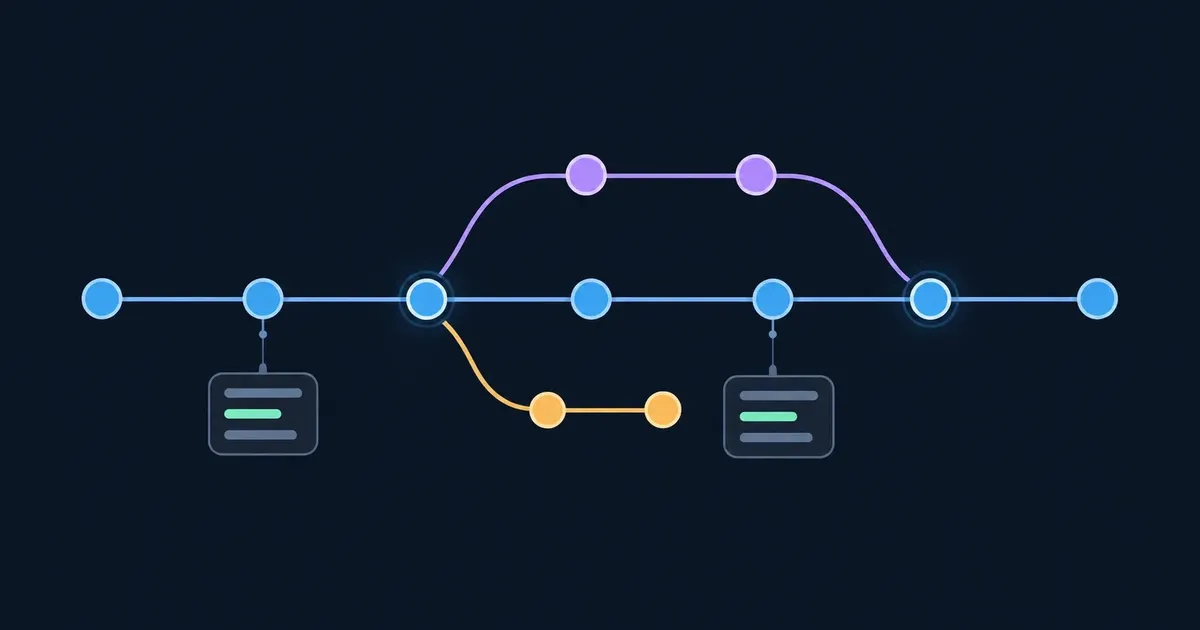
Intro to Git — Snapshots, Branches & Sharing
 WorkshopyOfficial
10 stepsQuiz9 interactiveDiagram~65 min
gitversion controlbeginners
Used by 1 teacherBeginner
Phishing awareness training for employees: sort a realistic inbox, check senders and links, spot pressure tricks and practise what to do after a click.
WorkshopyOfficial
33 lessons · used by 2 teachers
Sign in to copy it to your workspace. It’s free.
11 steps · 2 quizzes · about 50 minutes · open any step, or read it here
In this phishing awareness training you learn to spot a fake email before it costs you anything. You practise on realistic messages: you decide first, then see the tells that gave each one away.
Phishing is the most reported kind of cybercrime: the FBI's Internet Crime Complaint Center received 193,407 complaints about phishing and spoofing in 2024, more than any other category. It works on careful people too, because it is built to catch you when you're busy.
Try it: press Show the first tell and go through all four.
Interactive · Four tells in one email — try it in the lesson
In this lesson you'll:
It takes about 50 minutes, with a quiz in the middle and one at the end.
Takeaway: one tell is enough reason to stop and check.
Phishing is a message that pretends to come from someone you trust so that you do something for the attacker: type a password, open a file, pay an invoice, read out a code. Email is the most common channel, but the same trick arrives by text, phone call, chat and QR code.
Most phishing follows the same chain. Each stage needs the one before it, so breaking any single stage stops the attack.
Try it: press Play the attack, then press each stage to see how it can be broken.
Interactive · How one click becomes a stolen account — try it in the lesson
Notice that the attacker never "hacks" anything. Every stage depends on a person taking an action. That is why this training is about habits, not technology.
Takeaway: phishing needs you to act. The earlier you stop, the less there is to undo.
An email has two parts in its From line: a display name ("Dana Cohen", "IT Service Desk") and an address (dana.cohen@larkfield.com). The display name is free text: anyone can type any name. Many mail apps, and most phones, show only the name.
The part that matters is the domain, everything after the @. Read it to its very end and ask: is it exactly the domain I expect? Lookalikes swap letters (rn for m, 1 for l), add words (larkfield-payroll.com) or put your company's name in front of their own domain (larkfield.com.billing-dept.net, which belongs to billing-dept.net).
Try it: turn on Show the full addresses, then judge each sender.
Interactive · Real sender or lookalike? — try it in the lesson
A real domain is not a guarantee. Addresses can be forged, and a colleague's real account can be taken over. So a correct sender is where checking starts, not where it ends: the request still has to make sense.
Takeaway: tap or hover on the name to see the full address, and read the domain to its end.
A link's words and its address are two different things. "Open the document" can go anywhere. To see the address, hold the pointer over the link (on a computer) or press and hold it (on a phone); the address appears at the bottom of the window or in a preview.
Then read the host, the part between :// and the next /, from the right:
secure-login.net in larkfield.com.secure-login.net. A few countries use three, like larkfield.co.uk.larkfield.com. in front proves nothing.@ in the host is thrown away: www.larkfield.com@account-check.io goes to account-check.io.203.0.113.42 instead of a name is a reason to stop.Try it: press each link, then type one of your own.
Interactive · Where does this link really go? — try it in the lesson
A padlock in the address bar only means the connection is encrypted. Phishing sites have padlocks too.
Takeaway: the domain is at the right end of the host. If it isn't the one you expect, don't press.
Phishing gives you a reason to hurry, because people who hurry don't check. The levers are always the same:
None of them proves an email is fake. Real companies set deadlines too. But each one is a signal to slow down, and two or three together in one message almost never happen in honest email.
Try it: press every phrase that pushes you to act before you think, then check your picks.
Interactive · Find the pressure — try it in the lesson
Takeaway: when a message makes you feel rushed, that feeling is the tell. Slow down on purpose.
The most expensive phishing doesn't need a link at all. It simply asks for something outside the normal way of working: buy gift cards, change a supplier's bank details, approve a sign-in, enable a file's macros, reply with a password.
This is how business email compromise works: the attacker poses as a manager or a supplier and asks for money. In 2024 the FBI received 21,442 complaints about it, with reported losses of about 2.77 billion US dollars.
The defence is a rule, not a judgement call: when a message asks for money, a password, a code or an approval, verify it through a different channel, using contact details you already have, never the ones in the message.
Try it: decide whether each request is normal or a red flag.
Interactive · Normal request or red flag? — try it in the lesson
Takeaway: an unusual request is checked by phone or in person, on a number you already have.
Four questions on what you've seen so far.
Question 1. An email from "Dana Cohen" comes from dana.cohen@larkfie1d.com. Your company's domain is larkfield.com. What is it?
Question 2. Where does `https://larkfield.com.secure-login.net/reset` go?
Question 3. The link has a padlock in the address bar. What does that tell you?
Question 4. Your CEO's name emails you: "Buy gift cards for a client today and keep this between us." What do you do?
Time to use everything at once. This inbox has eight emails. Some are real, some are phishing, and one phishing email comes from your company's real domain.
For each one: check the sender's domain, read the link, notice the pressure and ask whether the request is normal. Then decide. After each decision the tells are marked in the email.
Try it: open each email and decide.
Interactive · Sort the inbox — try it in the lesson
Which one was hardest? Usually it's the email from IT's real address. It shows why the request matters more than the sender: no one legitimate asks for your password, whatever address they write from.
Takeaway: sender, link, pressure, request. Four checks, a few seconds each.
The same trick works on any channel, and each has its own name:
The answer is the same each time: don't use the contact or the link the message gives you. Open the app yourself, call the number you already have, and never share a one-time code with anyone.
Try it: pick each kind, work out what's wrong, then show the tell.
Interactive · Phishing beyond email — try it in the lesson
Takeaway: a code sent to your phone is for you alone. No real colleague, bank or IT team ever asks for it.
Anyone can be caught, including security staff. What matters is the next few minutes. The worst reaction is to say nothing out of embarrassment: an attacker with your password can read your mail and send phishing to your colleagues from your real account.
Try it: you typed your password on a fake page. Build your plan, in order.
Interactive · You clicked: build your plan — try it in the lesson
Your company's way to report is the one to use: often a Report or Report phishing button in the mail app, or a security address. Reporting a phishing email you did NOT click is just as useful: it lets IT remove it from everyone else's inbox.
Takeaway: stop, report, change the password, watch. Report even when you're not sure.
You won't remember a list of tells when you're busy. A short routine works better, and it takes seconds:
The chart below is that routine as four questions. Walk a message through it.
Try it: pick a message, then answer Yes or No at each question.
Interactive · Stop, check, verify, report — try it in the lesson
Most messages leave the chart at the very first question: they don't ask for anything. The routine only costs time on the few that do.
Takeaway: the four questions fit in the seconds before you press.
Each exercise is a link from an email. Type the domain it really goes to: the last two parts of the host (three for addresses like .co.uk). Your company's domain is larkfield.com.
https://larkfield.com.account-verify.net/loginhttps://www.larkfield.com@secure-docs.io/viewhttps://hr.larkfield.com/benefitshttps://larkfield-benefits.com/enrolhttps://docs.google.com.drive-share.co/file/123Six questions on the whole lesson.
Question 1. Which part of an email address tells you who really sent it?
Question 2. Where does `https://www.larkfield.com@pay-portal.io/invoice` go?
Question 3. An email comes from your IT team's real address and asks you to reply with your password to finish a migration. What is it?
Question 4. Your phone shows a sign-in approval request at 23:40, and you are not signing in. What do you do?
Question 5. A supplier emails new bank details for this week's invoice. What is the safe way to check?
Question 6. Which of these should make you stop and check? (pick all that apply)
Workshopy shares this lesson under CC BY 4.0. Anyone may use and change it, with credit to you. Anyone can learn it here, free. A copy in your workspace is yours to change and run live; your students never need an account.
Version 1Current
· First published
Copies are made from the current version. A copy you already have doesn’t change.
WorkshopyOfficial10 stepsQuiz9 interactiveDiagram~65 min
gitversion controlbeginners
WorkshopyOfficial16 steps2 quizzes15 interactiveDiagram~120 min
workshopyproduct touronboarding
WorkshopyOfficial9 steps2 quizzes8 interactive~60 min
excelspreadsheetsformulas
WorkshopyOfficial10 steps2 quizzes10 interactive~70 min
businessstartupsentrepreneurship
WorkshopyOfficial8 steps2 quizzes8 interactive~60 min
economicsbusinesssupply and demand


Comments 0
No comments yet. Be the first to say how it went.