OtherEN
Intro to Git — Snapshots, Branches & Sharing
 WorkshopyOfficial
10 stepsQuiz9 interactiveDiagram
gitversion controlbeginners
Used by 1 teacherBeginner
Regex practice exercises with answers: a live tester marks matches as you type, one token a step, on log lines, ticket IDs, CSV exports and dates.
WorkshopyOfficial
78 lessons · used by 2 teachers
Sign in to copy it to your workspace. It’s free.
12 steps · 2 quizzes · open any step, or read it here
In this lesson you practise regular expressions with exercises and answers, in a live tester that marks every match as you type the pattern. You work on log lines, support ticket IDs, order numbers, dates in reports and emails in a CSV export, and learn one new token a step.
A regular expression (regex) is a pattern that describes text: "TCK-, then digits" instead of every ticket number one by one. Search boxes in editors, spreadsheets, log tools, grep and every programming language understand them.
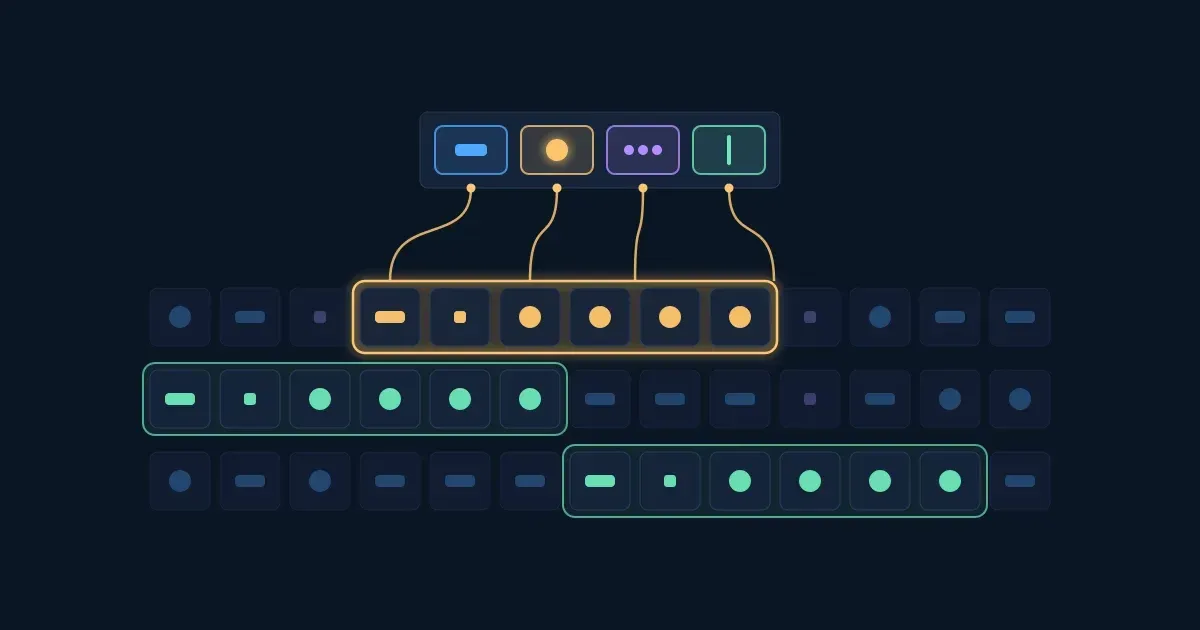
Press Play and watch a pattern grow one token at a time. Under the pattern, each token is explained in words; in the text, every match is marked.
Interactive · Watch a pattern grow, one token at a time — try it in the lesson
In this lesson you'll:
+, *, ?, {4})It takes about 70 minutes. Each step has a tester with two to four tasks; a task ticks itself when your pattern finds exactly the text it wants, and the text it wants is underlined with a dashed green line. Stuck? Hint, then Show answer.
The tester runs JavaScript's regex engine, the one in every browser. Most of what you learn works the same in Python, Java, C#, VS Code and grep -E; where they differ, the step says so.
Takeaway: a regex is a pattern; the engine finds every place in the text that fits it.
Most characters in a pattern match themselves. The pattern ERROR finds the five letters E, R, R, O, R, in that order, wherever they are. Matching is case-sensitive: error does not find ERROR.
A few characters have a special meaning. The first one is the dot: . matches any one character except a line break. So 09:1. matches 09:14, 09:15 and 09:1x.
To match a real dot, escape it with a backslash: \.. The same goes for the other special characters: \$, \(, \+, \?, \*, \[, \\. Forgetting this is the classic slip: mail.example.com also matches mailXexample-com.
Try it: do the four tasks on these log lines.
Interactive · Literal text and the dot — try it in the lesson
Takeaway: letters and digits match themselves; . is any one character, \. is a real dot.
Square brackets match one character from a set. gr[ae]y matches grey and gray; [gG] matches a small or a capital g.
| Class | Matches one |
|---|---|
[aeiou] |
vowel |
[0-9] |
digit, 0 to 9 |
[A-C] |
capital A, B or C |
[A-Za-z] |
letter, small or capital |
[^13] |
character that is not 1 or 3 |
A ^ right after the opening bracket turns the set around: [^13] is anything but 1 and 3, a letter or a space included. Inside brackets most special characters lose their meaning: [.] is a real dot.
The i flag (ignore case) makes the whole pattern ignore capitals: with it, gray also finds Gray. In JavaScript it is written after the pattern, /gray/i; in Python, re.IGNORECASE; in grep, -i.
Try it: work on this support queue. The switch beside the pattern turns the i flag on.
Interactive · Character classes in square brackets — try it in the lesson
Takeaway: [...] is one character from a set, [^...] one character not in it.
Some classes are so common that they have a short name:
| Shorthand | Means | Opposite |
|---|---|---|
\d |
a digit, [0-9] |
\D, not a digit |
\w |
a word character, [A-Za-z0-9_] |
\W, not a word character |
\s |
whitespace: a space, a tab, a line break | \S, not whitespace |
They work inside brackets too: [\d.] is a digit or a dot, [^\w\s] is punctuation.
Where flavours differ: in JavaScript, \d is only 0 to 9 and \w is only the English letters, digits and _, even with the u flag. In Python 3, both also match other scripts: \d matches the Arabic-Indic digit ٣ and \w matches é. Plain grep -E does not know \d at all: write [0-9] there.
Try it: find the order numbers and prices in this export.
Interactive · Shorthand classes: \d, \w and \s — try it in the lesson
Takeaway: \d digit, \w word character, \s whitespace; capital letters mean "not".
A quantifier after a character, a class or a group says how many times it repeats:
| Quantifier | Means | Example | Matches |
|---|---|---|---|
+ |
one or more | TCK-\d+ |
TCK-7, TCK-88213 |
* |
zero or more | TCK-\d* |
also TCK- alone |
? |
optional, zero or one | colou?r |
colour, color |
{4} |
exactly 4 | \d{4} |
1042 |
{2,5} |
2 to 5 | \d{2,5} |
20, 88213 |
{3,} |
3 or more | \d{3,} |
771, 48213 |
A quantifier repeats only what is just before it: in colou?r the ? makes only the u optional. Quantifiers are greedy: \d+ takes as many digits as it can. And matches never overlap: in 88213, \d{4} finds 8821 once and the 3 is left over.
Try it: match ticket IDs of any length, both spellings, and runs of four digits.
Interactive · Quantifiers: how many times — try it in the lesson
Takeaway: + one or more, * zero or more, ? optional, {n} exactly n.
Four questions on the steps so far.
Question 1. What does the dot match in the pattern `09:1.`?
Question 2. What does `[^0-9]` match?
Question 3. In JavaScript, what does `\d` match?
Question 4. Which strings does `colou?r` match?
Anchors match a position, not a character:
| Anchor | Position |
|---|---|
^ |
the start of the text, or of each line with the m flag |
$ |
the end of the text, or of each line with the m flag |
\b |
a word boundary: between a word character and anything else |
\B |
not a word boundary |
So ^ERROR finds ERROR only where a line starts with it, and \bcat\b finds the word cat but not category, catalog or bobcat.
The m flag (multiline) changes ^ and $: without it they mean the start and end of the whole text, so ^ERROR finds at most one match. In a tool that reads a file line by line, such as grep, every line is its own text, so ^ already means "start of the line".
A pattern for a whole value, such as a form field, is usually wrapped in both: ^ORD-\d{5}$ accepts ORD-48213 and refuses ORD-48213x and xORD-48213.
Try it: on these log lines, turn the m flag on when a task needs it.
Interactive · Anchors and word boundaries — try it in the lesson
Takeaway: ^ and $ pin the start and end (per line with m); \b pins a whole word.
A vertical bar means or: ERROR|WARN matches ERROR or WARN.
The bar splits the whole pattern unless it sits inside brackets. 09:0\d ERROR|WARN means "09:0, a digit, a space and ERROR" or "WARN". To choose only the level, group it: 09:0\d (ERROR|WARN).
Brackets also let a quantifier repeat more than one character: (\.\d+)+ is one or more groups of "a dot and digits", which is how a version number like 1.12.4 is built.
A group you don't need to read back can be written (?:...): it groups without capturing. The next step is about capturing.
Try it: find the ERROR and WARN lines and the version numbers. The table under the text shows what each group captured.
Interactive · Alternation and groups — try it in the lesson
Takeaway: | is or; brackets limit the or and let a quantifier repeat a whole group.
Every pair of brackets is a capture group: besides the whole match, the engine keeps what each group matched, numbered from the left by its opening bracket. In \d{4}-(\d{2})-\d{2}, group 1 is the month.
That is how you pull data out of text: the year, month and day of each date; the user name and the domain of each email address.
A group can have a name: (?<year>\d{4}). Code then reads it by name instead of by number, which survives adding another group in front. Python writes a named group (?P<year>\d{4}).
In a find-and-replace, the groups come back: $1 (or $<year>) in JavaScript and VS Code, \1 in Python and sed. Replacing (\d{4})-(\d{2})-(\d{2}) with $3.$2.$1 turns 2026-11-30 into 30.11.2026.
Try it: match the dates in these report lines, then capture their parts.
Interactive · Capture groups and named groups — try it in the lesson
Takeaway: brackets capture; groups are numbered by their opening bracket, or named with (?<name>...).
Quantifiers are greedy: they take as much as they can and give back only what the rest of the pattern needs. On the CSV row "Dana Levi","dana@example.com","Sales", the pattern ".*" matches from the first quote to the last one: the whole row.
Two ways to stop at the first closing quote:
? after the quantifier. ".*?" takes as little as it can: "Dana Levi", then "dana@example.com", then "Sales"."[^"]*" allows anything but a quote between the quotes. It can't run past a closing quote, and it is often faster.Lazy quantifiers exist in JavaScript, Python, PCRE (grep -P) and most languages, but not in POSIX grep -E. The negated class works everywhere.
One warning: nested repeats such as (\w+\s?)+$ can make an engine try millions of ways before it gives up on a line that almost matches (catastrophic backtracking). This tester stops such a pattern after half a second; a server may not.
Try it: the tester starts with the greedy pattern. Make each field its own match.
Interactive · Greedy and lazy quantifiers — try it in the lesson
Takeaway: .* takes as much as it can; .*? or [^"]* stops at the first quote.
A lookaround checks the text next to the match without taking it into the match:
| Lookaround | Means | Example | On "Pro 29 EUR, $45" |
|---|---|---|---|
(?=X) |
X comes next | \d+(?= EUR) |
29 |
(?!X) |
X does not come next | \b\d+\b(?! EUR) |
45 |
(?<=X) |
X comes just before | (?<=\$)\d+ |
45 |
(?<!X) |
X does not come just before | (?<!\$)\b\d+ |
29 |
Like anchors, they match a position. They are how you take a number without its unit, or a value only when a label stands before it.
Where flavours differ: JavaScript supports all four, in every current browser and in Node.js. Python's re needs a lookbehind of fixed width: (?<=\$) is fine, (?<=\$\s*) is refused. Plain grep -E has no lookarounds; grep -P has them.
Try it: take the amounts out of these pricing lines.
Interactive · Lookahead and lookbehind — try it in the lesson
Takeaway: (?=...) and (?<=...) check around the match; ! turns the check around.
Real patterns combine the tokens. This customer export has five rows, and some of them are broken: an email without a top-level domain, one with two @ signs, an order number one digit short, one missing its O.
Build the patterns piece by piece and watch the tester:
ORD-, exactly five digits, and word boundaries so a longer or shorter number doesn't slip through.[\w.+-], then @, then a domain name and one or more groups of a dot and a name. It rejects omar@example and lars@@example.com.@ in a named group.A regex that accepts every valid email address under the standard is long and unreadable. At work, a simple pattern that catches the usual typos, plus a confirmation email, does the job.
Interactive · Clean a CSV export — try it in the lesson
Takeaway: build a pattern one token at a time and check each step against the text.
Answer each exercise, then check. A hint costs nothing, and a wrong answer costs nothing either.
TCK-7 and TCK-88213, but not TCK- alone?\bcat\b find in the text cat category bobcat cat.?".*" match in the text "a","b"?\d{3} find in ORD-48213?2026-11-30 and captures the month, 11, in group 1?^ERROR find in the whole text?Six questions on the whole lesson.
Question 1. With the m flag on, what does `^` match?
Question 2. Which strings does `^TCK-\d{4}$` match, each tested on its own? (pick all)
Question 3. What does `\(.*\)` match in the text `(a) and (b)`?
Question 4. What does `\d+(?=%)` match in the text `disk 81% full`?
Question 5. The pattern `(\w+)@` runs on `dana@example.com`. What is group 1?
Question 6. You copy a pattern with `\d` from a JavaScript project into `grep -E`. What should you change?
Workshopy shares this lesson under CC BY 4.0. Anyone may use and change it, with credit to you. Anyone can learn it here, free. A copy in your workspace is yours to change and run live; your students never need an account.
Version 1Current
· First published
Copies are made from the current version. A copy you already have doesn’t change.
WorkshopyOfficial10 stepsQuiz9 interactiveDiagram
gitversion controlbeginners
WorkshopyOfficial16 steps2 quizzes15 interactiveDiagram
workshopyproduct touronboarding
WorkshopyOfficial10 steps2 quizzes10 interactive
data-literacystatisticsmean and median
WorkshopyOfficial12 steps2 quizzes15 interactive
pythonfunctionsreturn values
WorkshopyOfficial12 steps2 quizzes11 interactive
gitpull requestscode review
WorkshopyOfficial11 steps2 quizzes11 interactive
devopsdockercontainers
Comments
No comments yet. Be the first to say how it went.