
How to run a hands-on AI workshop for beginners
By the Workshopy teamPublished 8 min read
Most of what goes wrong in a beginner AI workshop happens before the first good prompt: a forgotten password, a work laptop that blocks the site, a free plan that runs out. Settle tools and accounts before the day, and make the first step a prompt that proves everyone's tool answers. Then give short tasks whose answers people can check, teach them to rephrase instead of giving up, and help the people who can't get in before the people who want a better answer.
Settle tools and accounts before the day
Every participant arrives with a different laptop and a different account: a personal ChatGPT, a work Copilot, a Claude account made a year ago and never opened since. Decide which tool the class uses and say so in the invitation. If people's organization approves one tool, use that one: it's the tool they can keep using on Monday.
Then send setup instructions a few days before, with a check people can run themselves. Greg Wilson's advice for programming workshops holds here: email the setup steps a couple of days ahead, expect a few people to arrive without them done, and have everyone run a simple check as soon as they arrive. For a chat tool the check is a prompt. For a coding tool such as Cursor or Claude Code, it's the program installed, signed in and answering in the folder you'll work in.
What stops people on the day:
- Signing in: a password nobody remembers, a code sent to a phone left at home, a work account that signs in through the company.
- Blocked sites: workplaces and schools often block AI tools on their network or their laptops. Ask IT before the day, not during it.
- Plan limits: free plans have usage limits that a full day of practice can reach, and coding tools may need a paid plan or an API key. Check each tool's current terms when you write the instructions.
- What may be typed in: give people the rule before they paste anything. In a workshop, use invented or public material: no customer data, no passwords, no colleague's personal details.
Make the first step prove the tool answers
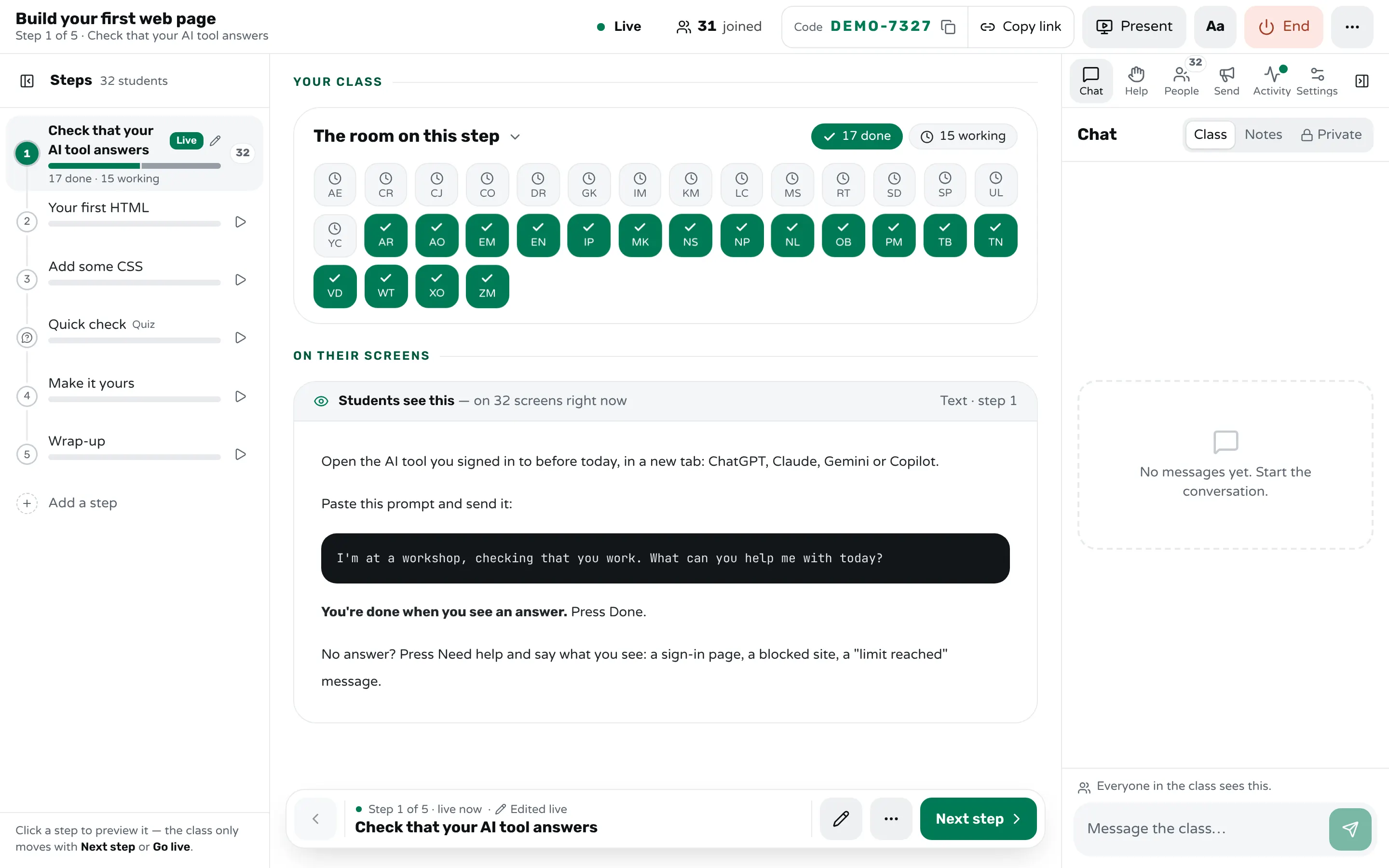
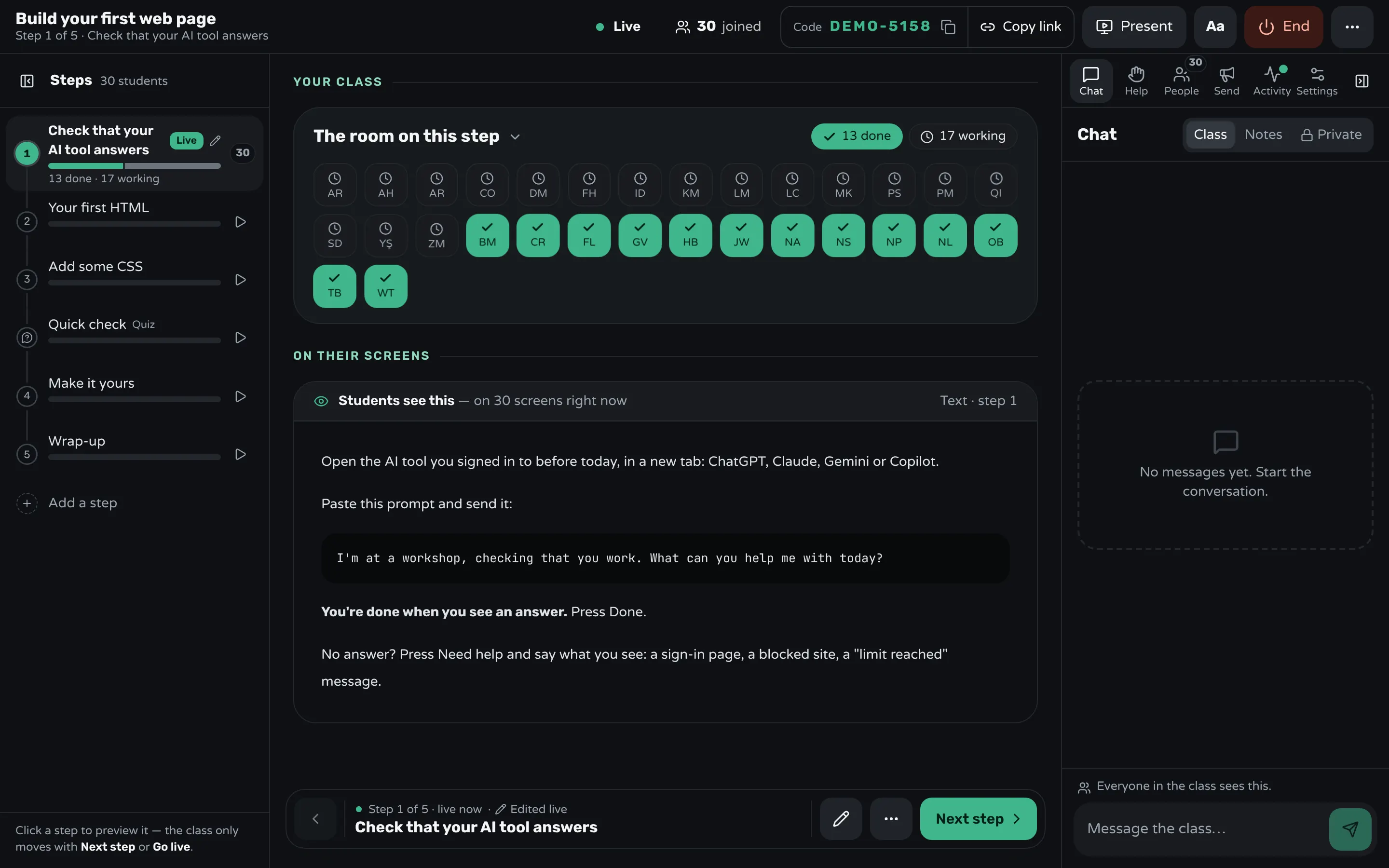
The first task of the day isn't about AI at all: it checks that everyone's tool works. Put one short prompt on the screen and in the lesson, ask everyone to paste it and send it, and say that done means "you see an answer":
I'm at a workshop, checking that you work.
What can you help me with today?
This finds the blocked site, the expired trial and the forgotten password in the first five minutes, while you still have time to fix them, not in the middle of the third exercise. It also gives every participant a result before you ask for anything harder.
Keep a fallback ready for the people whose tool won't answer: their phone on mobile data, a neighbour's screen for the first tasks, or a second tool you've checked works.
Help the people who can't get in first
The hands that go up in the first half hour aren't all the same. Someone whose tool won't open can do nothing at all; someone whose answer is weak can keep trying while they wait. So answer in that order: no access first, everything else after. Within each group, take people oldest first.
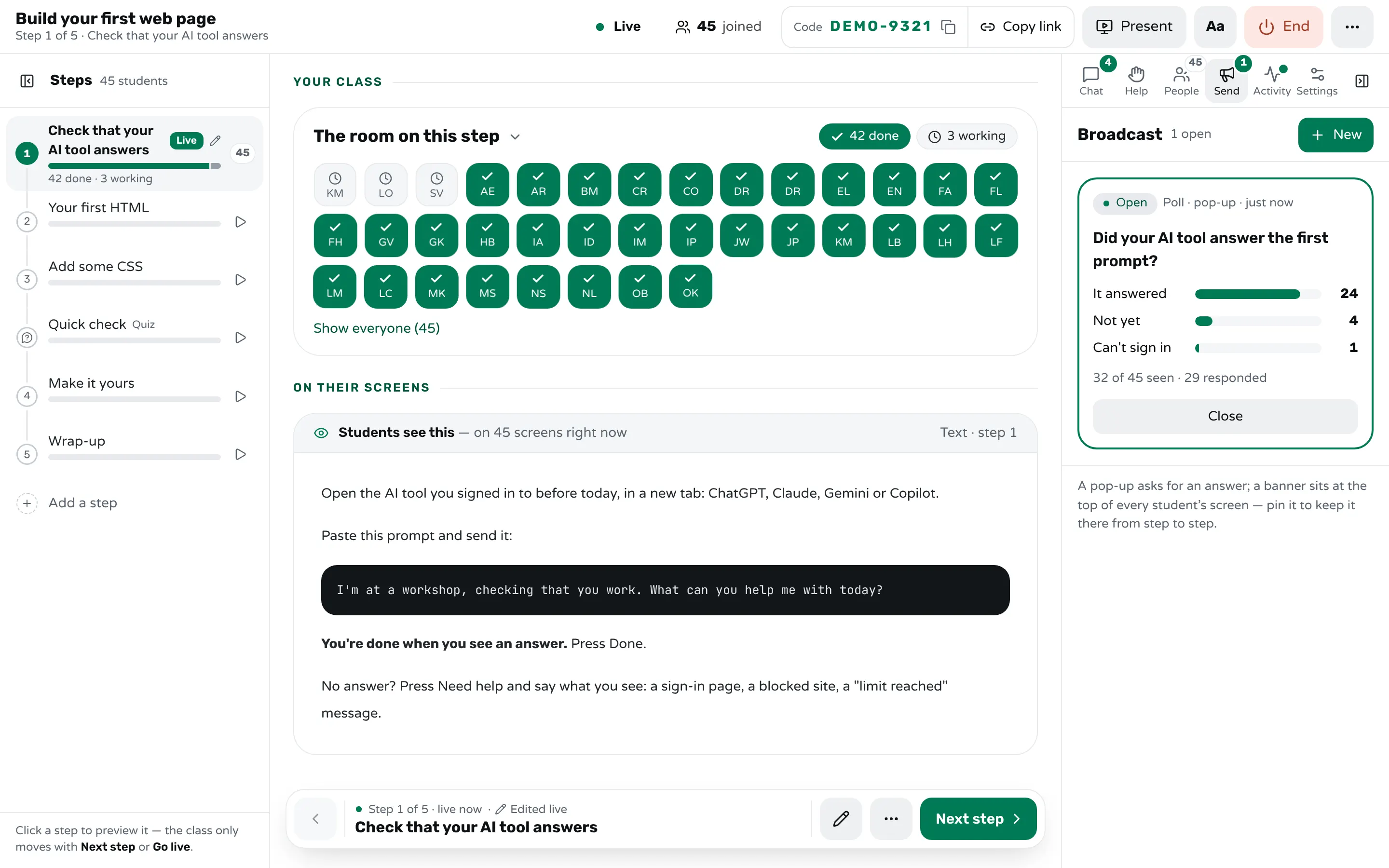
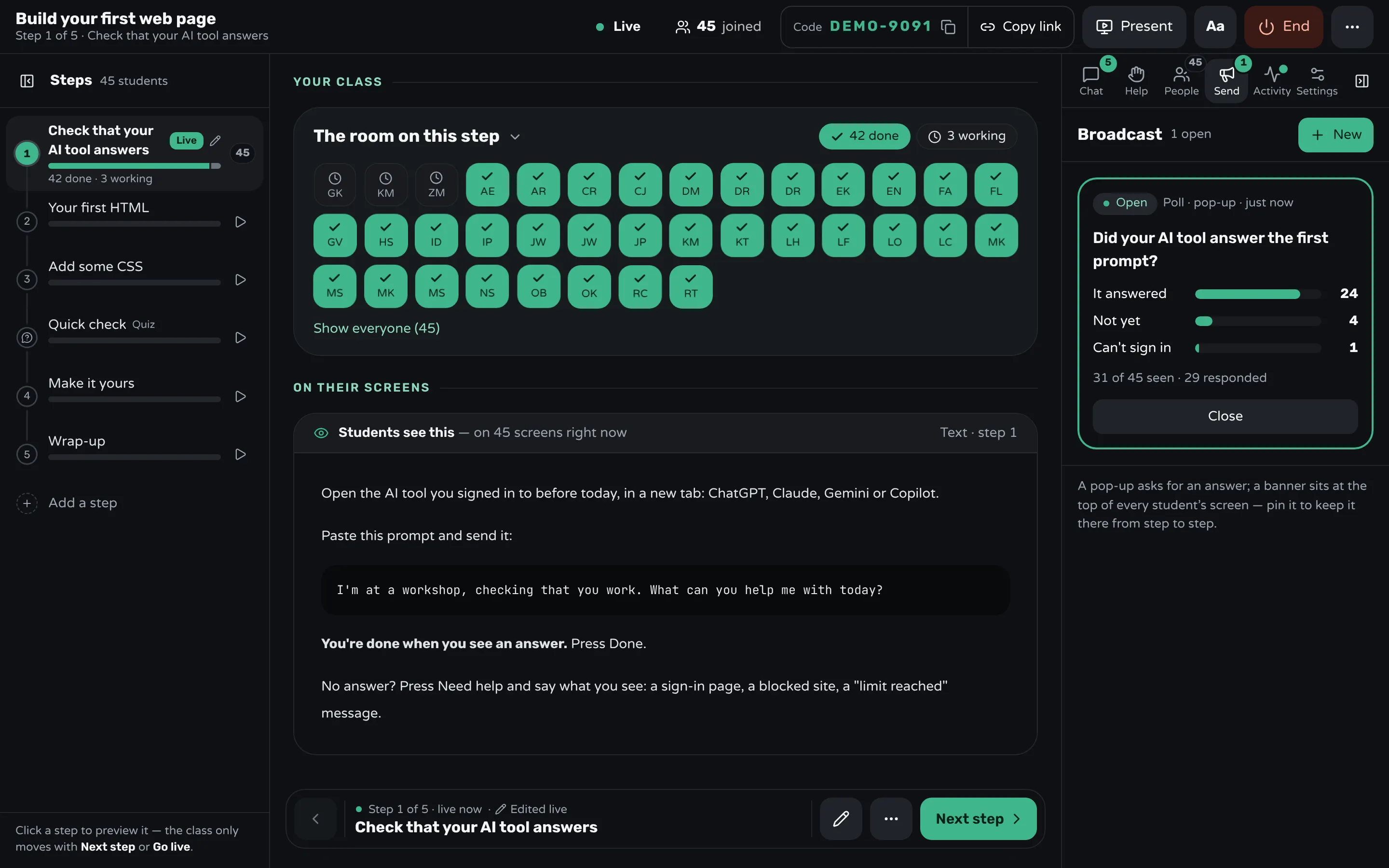
Find out who is in which group without a room full of raised hands. Ask one question everyone answers: "Did your AI tool answer? It answered / Not yet / Can't sign in." The last group is your list. Sit the people still waiting next to a neighbour whose tool works, so they follow the next task on that screen while you sort out the account. And fix accounts quietly, beside the person, not on the projector: adults especially don't want their login trouble shown to the room.
Start from a prompt, not an empty box
An empty chat box is a hard place for a beginner to start. Wilson's rule for programming exercises applies: novices should never start with a blank page or screen, because they often find it intimidating or bewildering. Give a prompt to copy, then ask for one change to it.
Teach what makes a prompt work by showing it. Anthropic's advice for Claude is to treat the model as a brilliant but new employee who lacks context, with a test anyone can run: show the prompt to a colleague with little context on the task, and if they'd be confused, the model will be too. Put a vague prompt and a specific one side by side:
- "Write an email about the meeting."
- "Write a three-sentence email to my team moving Thursday's 10:00 meeting to Friday at 14:00, because the room is booked. Friendly, no apology."
Let people run both and compare the answers. The difference teaches more than a list of rules. Where you can, use participants' own work: a report they wrote or a process they run every week is something they can judge.
Give tasks whose answers people can check
Beginners tend to trust a fluent answer. Learning when not to is the most useful thing an AI workshop teaches, and it needs tasks where the participant can tell right from wrong.
The risk is measured. Fabrizio Dell'Acqua and colleagues gave 758 Boston Consulting Group consultants realistic tasks with and without GPT-4. On tasks within what the AI did well, the consultants using it finished more tasks, faster, and their work was rated higher. On a task built to sit just outside it, where the spreadsheet pointed one way and details in interview notes pointed the other, those with the AI were right less often: 60% and 70% in the two AI groups against 84.5% without it, 19 percentage points lower on average.
So build the check into the task:
- "Summarise this one-page policy in five bullet points. You're done when you've found one point it got wrong or left out."
- "Ask for a formula that totals column C and paste it in. You're done when the total matches the one on the screen."
- "Ask for three subject lines for this email. You're done when you've picked one and can say why."
Add one task you've tried yourself and seen the tool get wrong, such as a question whose answer is in a document you hand out, and let people find the mistake. Catching one error does more for their judgement than any warning you give.
Teach them to rephrase, not give up
The first bad answer often ends a beginner's attempt. J.D. Zamfirescu-Pereira and colleagues watched 10 people without prompt-writing experience build a chatbot with prompts. They tried things as they occurred to them rather than systematically, drew conclusions from a single failure ("ok, I guess it doesn't like to tell jokes"), and very few tried rephrasing a request the model had ignored. They also wrote "don't do X" far more often than "do Y", though on a few occasions the researchers saw the "don't" form work much worse.
So teach the loop out loud, and practise it:
- Say what was wrong with the answer, and ask again.
- Add the context you left out: who it's for, how long, what to use.
- Ask for what you want, not for what you don't want.
- If the conversation has gone off course, start a new one.
Then use the fact that the same prompt gives different answers. Ask two neighbours to send an identical prompt and compare: they'll get different words, and sometimes different facts. It shows why every answer needs checking, and why one bad answer doesn't mean the tool can't do the job.
Running it in Workshopy
Workshopy holds the lesson; participants keep their AI tool open in another tab or window. Write the workshop as steps, put each prompt in a code block (it gets a copy button), and end each step with its check. Start the class and put the join link on the screen or in the call's chat: people type a name and they're in, with no account. If someone has one small laptop screen, the lesson can sit on their phone while the AI tool fills the laptop.
On each step, participants press Done when the check passes, or Need help, which opens a short private form with quick reasons ("I get an error", "I'm lost") and a note, such as "chatgpt.com is blocked on my work laptop". Your screen shows a tile for each participant on the current step, done or still working, with the ones asking for help in amber, and the Help tab lists the requests oldest first with their notes. To ask "Did your AI tool answer?", send a question with three choices from the Broadcast tab and watch the answers come in.
If a prompt in a step stops working with this week's version of the tool, edit the step during the class: every participant's screen updates. With Look ahead on, the people who finish early can move on while you help the rest. And if you plan the workshop with Claude, you can connect it to Workshopy and have it write the steps.
Sources
- Greg Wilson, Teaching Tech Together: Setting Up Your Learners (2019)
- Greg Wilson, Teaching Tech Together: Never a Blank Page (2019)
- Fabrizio Dell'Acqua and colleagues, Navigating the Jagged Technological Frontier: Field Experimental Evidence of the Effects of AI on Knowledge Worker Productivity and Quality (Harvard Business School Working Paper 24-013, 2023)
- J.D. Zamfirescu-Pereira, Richmond Wong, Bjoern Hartmann and Qian Yang, Why Johnny Can't Prompt: How Non-AI Experts Try (and Fail) to Design LLM Prompts (CHI 2023)
- Anthropic, Prompting best practices (Claude documentation)
Frequently asked questions
Which AI tool should I use in a beginner workshop?
The one participants can keep using afterwards, usually the one their organization approves. One tool for the whole class means one set of instructions; if people bring different tools, write prompts that work in any of them.
Do participants need a paid account?
Not for a first workshop in a chat tool: free plans answer prompts, though their usage limits can run out over a long day of practice. Coding tools may need a paid plan or an API key, so check each one's current terms before you send the setup instructions.
What shouldn't people type into an AI tool during a workshop?
Anything they wouldn't want to leave the organization: customer data, passwords, colleagues' personal details, unannounced plans. Use invented or public material for the exercises, and tell people your organization's rule before the first prompt.
Why do two people get different answers to the same prompt?
These tools write a new answer every time, so the same prompt rarely gives the same words twice, and sometimes not the same facts. Show it on purpose: it's the clearest reason to check every answer.
How do I keep the fast finishers busy?
Plan a harder version of each task, such as the same prompt with a stricter format or a second document to compare, and let them move on to it while you help the rest.
Keep reading
How to teach adults in a hands-on workshop
Start with something useful the same day, match the help to what each person knows, keep mistakes private, and never call anything "just".
5 min read · 21 Oct 2026
Hands-on & coding workshopsHow to run a hands-on coding workshop
Plan short steps that each end in working code, write the code live and slowly, and keep a queue for students whose code won't run.
4 min read · 19 Oct 2026
See who's stuckHow to run a help queue in a classroom
Keep one list of who needs help, take it in order, keep each visit short, and explain a repeated problem to the whole room at once.
6 min read · 20 Oct 2026
See it with a class of 45. No sign-up.
The live demo runs the real product with a simulated class. When you're ready, start free.