
How to run a help queue in a classroom
By the Workshopy teamPublished 6 min read
Keep one list of the students who need help, visible to you and to them, and work through it in order, so the loudest student doesn't take every turn. Ask students to say what's wrong when they join it, keep each visit to a few minutes, and give them something to do while they wait. When the same problem turns up three times, stop helping one by one and explain it to the whole room.
Why a queue works better than raised hands
A raised hand stops the student working: they can't type with one arm in the air, so they wait and do nothing. It also leaves the order to you, in the moment, and in the moment you go to whoever is closest, loudest or most insistent. The quiet student at the back waits longest, and is the least likely to ask again.
A queue fixes both. The student signs up and keeps working. The order is decided by when they asked, not by how hard they waved, and everyone can see that it is fair. You can also see the whole list at once, which is what lets you notice that four people are stuck on the same thing.
Set it up: one list, one note
Any list works, as long as there is only one and everyone knows where it is:
- Names on the whiteboard, in the order students write them.
- Sticky notes: a coloured note on the laptop means "I need help". Greg Wilson recommends this over raised hands because it's discreet, so people actually use it, and they can keep working while their flag is up.
- A digital queue on the students' screens, which also keeps the order for you.
Ask for one line with each request: what's wrong, and what they already tried. "My CSS doesn't change anything, I saved and refreshed" tells you a lot before you walk over. Two notes that describe the same mistake tell you even more.
Decide the order before the class starts
First come, first served is the right default. It's simple, it's visible, and students accept it as fair.
When the queue gets long, one change helps more students: take the ones who haven't had help yet this lesson before someone coming back for a second or third time. In a 2024 simulation of a programming course's office hours queue, putting students who hadn't been helped that day first raised the share who got help at least once from 70% to 82% on a normal day, without making the average wait longer. The authors kept first come, first served for in-person office hours, where students rarely come back the same day; in a class they come back within minutes, which is when this rule matters, so tell the room why the order changed. Wilson describes a low-tech way to do the same in a classroom: each learner puts a sticky note with their name on their laptop and takes it down once you've helped them, so you can see at a glance who you haven't reached yet.
Make one exception known in advance: a student who can't do anything at all, such as a laptop that won't start the program everyone needs, may skip ahead. A question about the next detail can wait its turn.
Keep each visit short
Every minute you spend with one student is a minute everyone else in the queue waits. Aim for a few minutes, and when a problem will take longer, leave the student with a next thing to try and come back after the next person.
- Ask them to show you what they did and what they expected.
- Don't take the keyboard. The Carpentries' handbook lists taking over a learner's keyboard among the habits to avoid: guide them through the fix and let them type it themselves, so they can do it again.
- Close the loop. Before you leave, check that it works. A student whose problem came back has to start again at the end of the queue.
Keep the waiting students working
Students in a queue tend to sit and wait. In a study of a programming course's online office hours, only 21% of the students waiting for help committed any code while they waited. Give the queue something to do:
- Ask a neighbour first. Many classrooms use "ask three before me": a classmate who just finished the step often fixes it faster than you can get there.
- Try the next thing. Re-read the step, compare their code with the example line by line, or move on to the next step and come back.
- Leave the request up. If they fix it themselves, they take their name off the list, and you skip one visit.
When the queue grows faster than you can work it
Two signals mean the queue is the wrong tool for the moment. If three requests describe the same problem, stop and explain it once to the whole room, then fix that step before you teach the lesson again. If the queue keeps growing anyway, you need more hands: The Carpentries recommend one helper for every 8 to 10 learners in their workshops. A helper takes the queue, so you can keep teaching, and watches the room for anyone stuck who hasn't asked yet (how to tell which students are stuck covers finding them).
Running the help queue in Workshopy
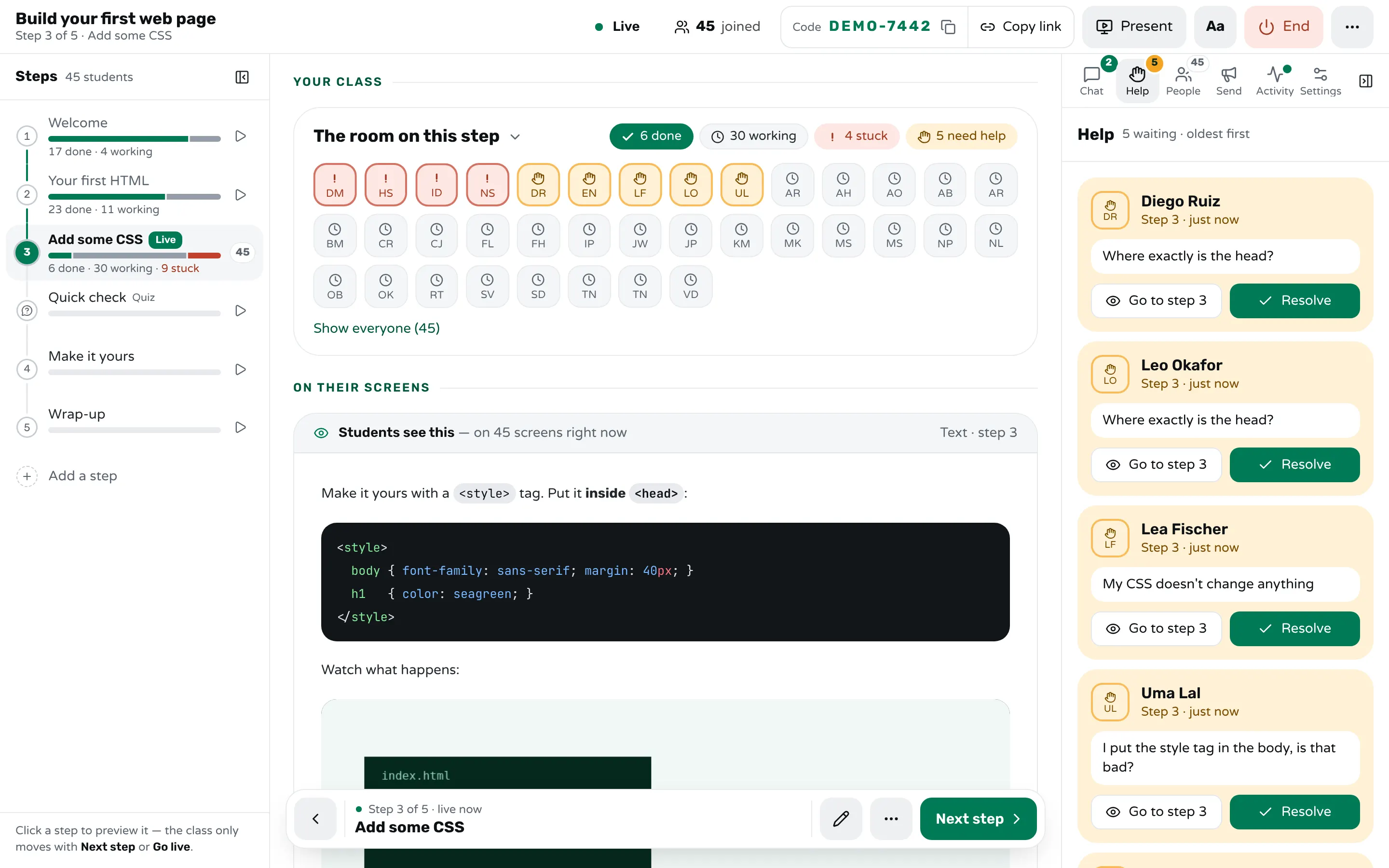
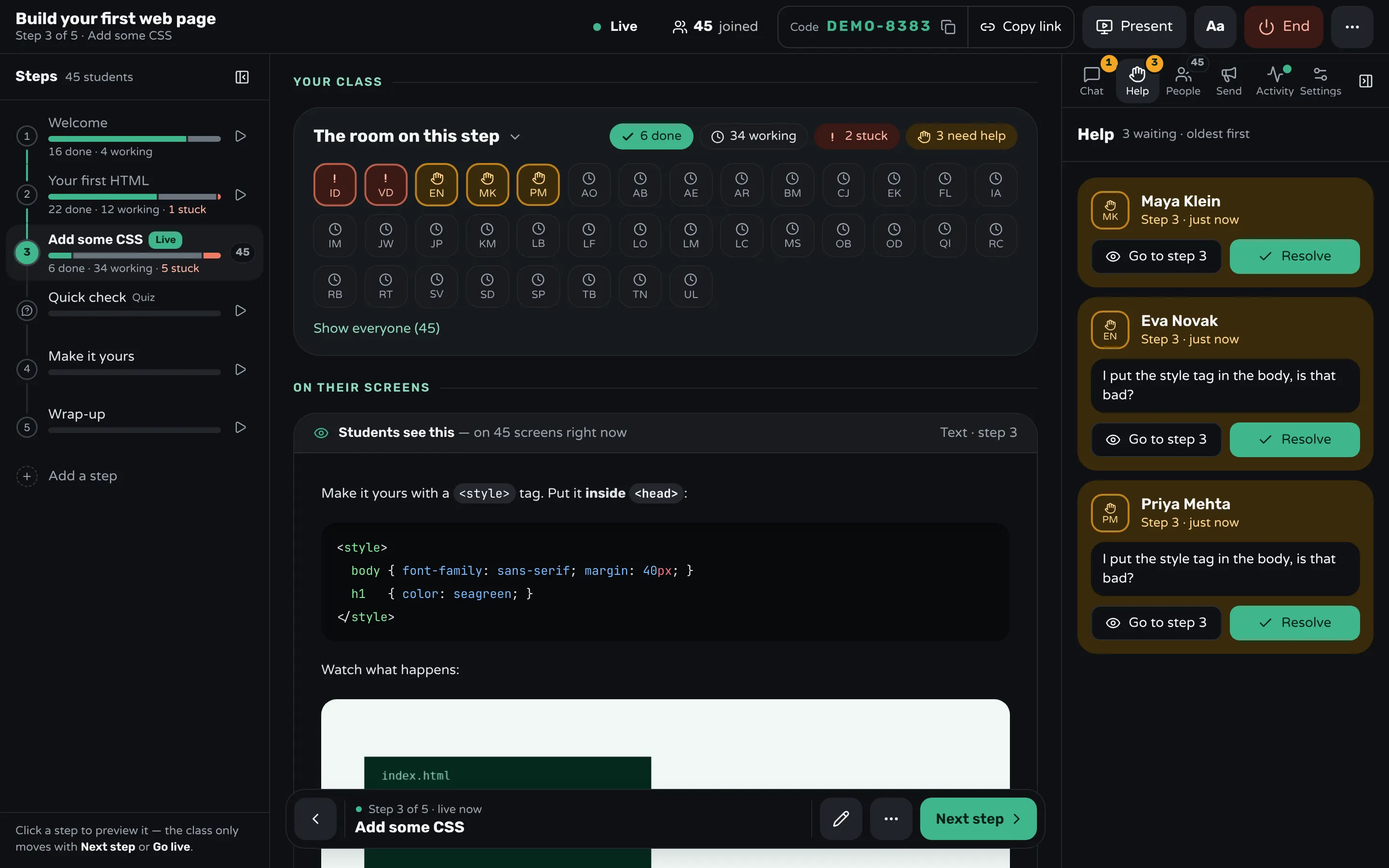
In Workshopy the queue is built in. A student presses Need help and can add a note, such as "my code throws an error on line 3". They keep working; their screen shows that they're waiting for help, and pressing Asked takes the request back if they fix it themselves.
On your screen the student's square in the room turns amber, and the Help tab lists every request oldest first: the student's name, the step they asked on, how long they've been waiting and their note, with Go to step to open the step they asked about and Resolve when you're done. A request that has waited five minutes turns red. When requests come from more than one step, the tab counts them per step, which is how a step that is tripping up the whole class shows itself.
When you press Resolve, the student is asked whether they're still stuck and can ask again with one tap. To answer one student without the class reading it, send them a private message. After the class, the report shows how many students asked for help on each step and how long they waited for an answer.
Sources
- Zhikai Gao, Gabriel Silva de Oliveira, Damilola Babalola, Collin Lynch and Sarah Heckman, Who Should I Help Next? Simulation of Office Hours Queue Scheduling Strategy in a CS2 Course (Educational Data Mining, 2024)
- Zhikai Gao, Collin Lynch and Sarah Heckman, Too long to wait and not much to do: Modeling student behaviors while waiting for help in online office hours (CSEDM workshop, 2023)
- Greg Wilson, Teaching Tech Together (2019): Sticky notes
- The Carpentries Handbook: Workshop checklists
Frequently asked questions
How long should a student wait for help?
As little as you can manage, and a few minutes is already long in a fast lesson. If the queue is longer than that, look for a problem you can explain to everyone at once, or bring in a helper.
Should I always help in the order students asked?
Mostly, yes: it's fair and everyone can see it. When the queue is long, take students who haven't had help yet before someone returning for another turn, and let a student who can't work at all skip ahead.
What should students do while they wait?
Keep trying. Ask a neighbour, compare their work with the example, or move on to the next step. A student who fixes it themselves takes their name off the list.
How many helpers do I need?
The Carpentries recommend one helper for every 8 to 10 learners in a hands-on workshop. With fewer, keep the steps short and explain repeated problems to the whole room.
Should I fix the student's code for them?
No. Point at the line, ask what they expected, and let them type the fix. It takes a minute longer, and they can do it alone next time.
Keep reading
How to tell which students are stuck in a hands-on class
Stuck students rarely raise a hand. Give every step a done signal, look for who hasn't sent it, and help the right student first.
3 min read · 19 Oct 2026
Run a live classHow to run a hands-on training on Zoom or Teams
Give people a done and a help signal that stays until you read it, take written help requests in order, and stop the class only on purpose.
7 min read · 22 Oct 2026
Hands-on & coding workshopsHow to run a hands-on coding workshop
Plan short steps that each end in working code, write the code live and slowly, and keep a queue for students whose code won't run.
3 min read · 19 Oct 2026
See it with a class of 45. No sign-up.
The live demo runs the real product with a simulated class. When you're ready, start free.