
How to run a hands-on training on Zoom or Teams
By the Workshopy teamPublished 7 min read
On a call you can't see anyone's screen, and the call's own signals fade: Zoom's emoji reactions disappear after 10 seconds and Teams' after a few seconds. Give every participant a done signal and a help signal that stay until you read them, ask them to write what went wrong, and answer requests oldest first. Keep the call for talking, and stop the whole class only on purpose, after everyone has said they're looking.
Why hands-on work is harder on a call
In a room you read the class without trying: screens, frowns, the person who stopped typing. On a call most of that is gone. Frank Castelli and Mark Sarvary surveyed 276 students in an online lab course: 90% had their cameras off at least some of the time, most often because of how they looked, who was behind them or a weak connection. The authors advise against making cameras compulsory, and even a face on camera doesn't show you the error on someone's screen.
The call also makes asking expensive. While you share your screen, a question means unmuting and interrupting. A team that ran hybrid Carpentries workshops found next to no use of Zoom's reactions and very quiet breakout rooms, which made it hard to know whether the people online were keeping up.
So the problem isn't the participants. It's that the room gave you signals for free, and online you have to set them up.
Give everyone a signal that stays
In a classroom, Greg Wilson hands every learner two sticky notes: green on the laptop means done, orange means I need help. A sticky note stays up while the person keeps working, it's more discreet than a raised hand, and one look across the room tells the teacher where the class is.
Online you need the same two things: one signal for done, one for help, and both must stay until you've read them. Check what your call offers:
- Zoom: emoji reactions disappear after 10 seconds, so they're no good for "done". The non-verbal feedback icons (Yes, No, Slow down) and the raised hand stay until the participant or the host removes them, and you read them in the Participants panel. On the web and phone apps a person can show only one icon at a time.
- Teams: live reactions float up for a few seconds and are gone. A raised hand stays and is numbered in the order people raised it, but Teams can lower it automatically once the person speaks.
Agree on the meaning once, at the start: "When you finish, press Yes. If you're stuck, raise your hand." Then give every task an end people can check, such as "you're done when the heading turns green", so done means the same thing for everyone. Before you move on, read who hasn't sent it, and clear the signals so the next task starts from zero.
Ask for help in writing, and answer in order
When you walk over to a desk you see the problem in a second. On a call, the first minute of every help visit goes on "share your screen... no, the other window". Ask people to write what went wrong when they ask: which step, what they did, what they see. Some requests are answered by the note itself, and two notes saying the same thing tell you to stop and explain it to everyone.
Keep the requests in one list and take them oldest first, not by whoever unmutes first: the quiet person who asked ten minutes ago has waited longest. Make asking private. A raised hand on a call is seen by everyone, and adults in particular don't want to look slow in front of colleagues. If one sentence fixes the problem, answer in a private message; if it needs a look at their screen, take it to a breakout room.
Use breakout rooms to help, not to hide
A breakout room is the online version of kneeling beside someone's desk. Move the student who asked (or a helper and the student) into a room, ask them to share their screen, fix it, and send them back.
The call decides how people ask from inside a room:
- Zoom: a participant in a breakout room can press Ask for Help and then Invite Host, and you're asked to join their room.
- Teams: each breakout room has its own chat, and the organizer can read every room's chat from their chat list, so ask groups to write there when they're stuck. A room's chat ends when the room closes.
Group work in rooms needs the same care as anything else. The hybrid Carpentries team found their online breakout rooms quiet, with cameras and microphones off unless someone was asking for help, and many attendees stopped joining them as the day went on. Keep group tasks short, give each room a result to produce, and bring everyone back to compare.
Stop everyone only on purpose
"Can everyone look at my screen?" lands on people halfway through typing, with their own window in front of the call. Stop the whole class only for a reason: several people hit the same problem, or the next idea needs everyone. Never stop it mid-task for one person; that's what the help list is for.
When you stop, say what to do with hands: "Hands off the keyboard for two minutes, look at my shared screen." Then wait until everyone has said they're looking before you start, and keep it short. The class came to do the work, not to watch you do it.
Before the day
Setup fails on someone's laptop in almost every class, and online you can't fix it by taking the keyboard. Send the setup instructions a few days before, with a check people can run themselves ("open a terminal and type python --version"). Make the first step of the session that same check, so the problems show up in the first five minutes and not in the middle of the third exercise.
Plan for one screen. Many participants will have the call, your instructions and their own work on a single laptop. Suggest a second monitor if they have one, or the instructions on a tablet or phone, and keep each step short enough to read beside a call window. Put the link to everything in the call's chat at the start and again after each break, for the people who join late.
Running it with Workshopy beside the call
Workshopy is not a video tool: keep Zoom or Teams for talking and screen sharing, and run the lesson in a browser tab beside it. Paste the join link into the call's chat; participants type a name and they're in, with no account. Each one sees the step on their own screen, on a laptop or a phone, with Done and Need help at the bottom.
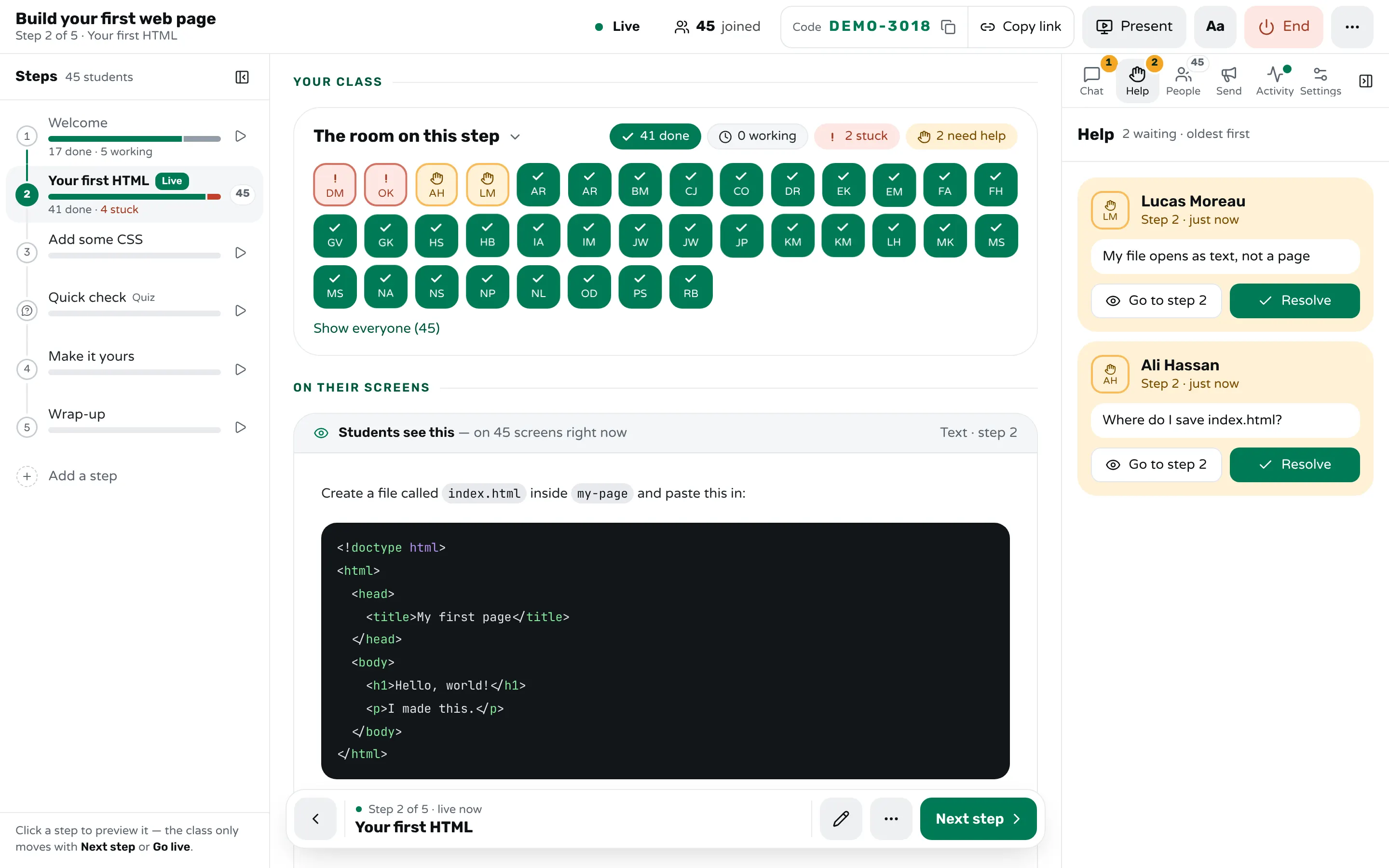
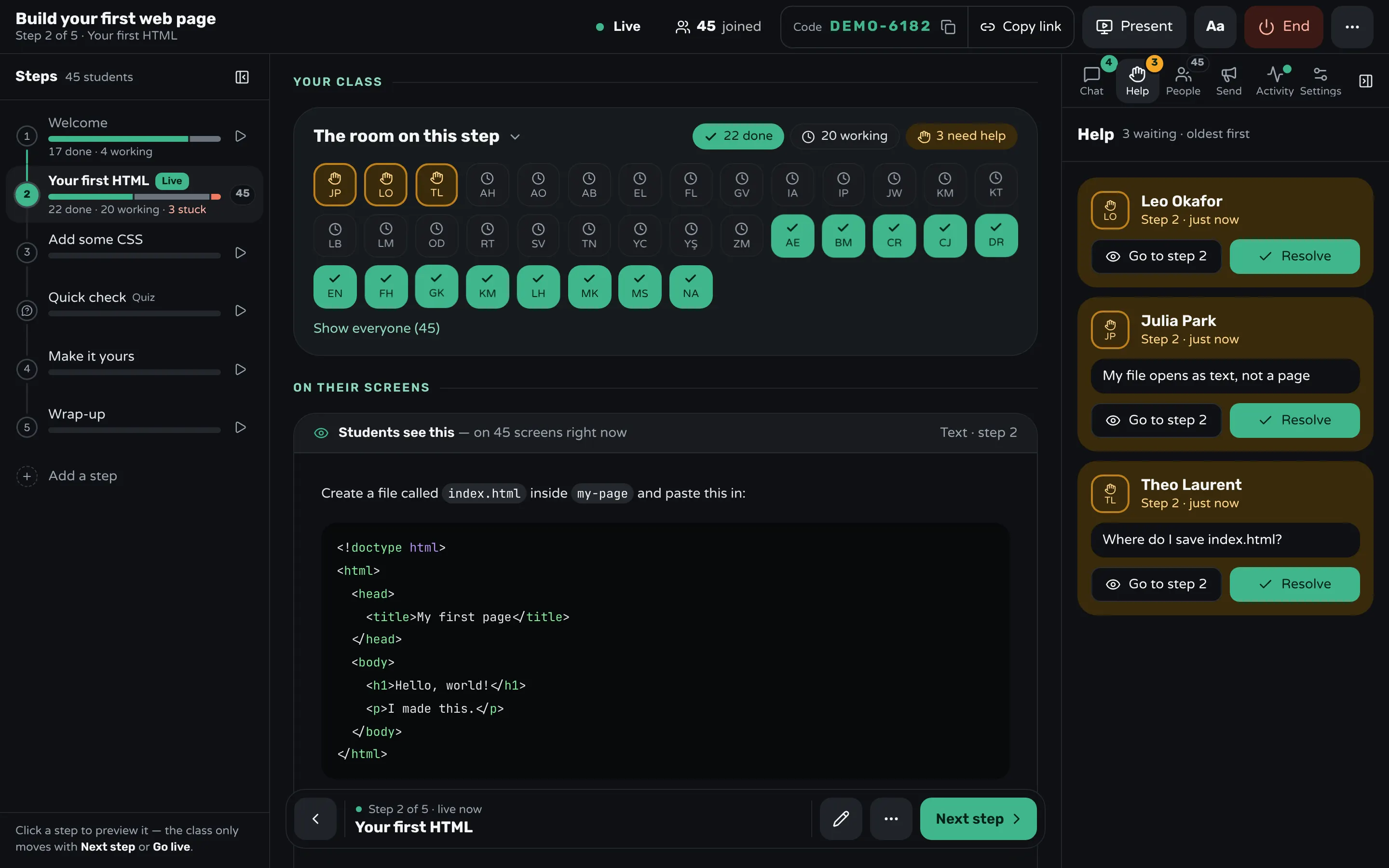
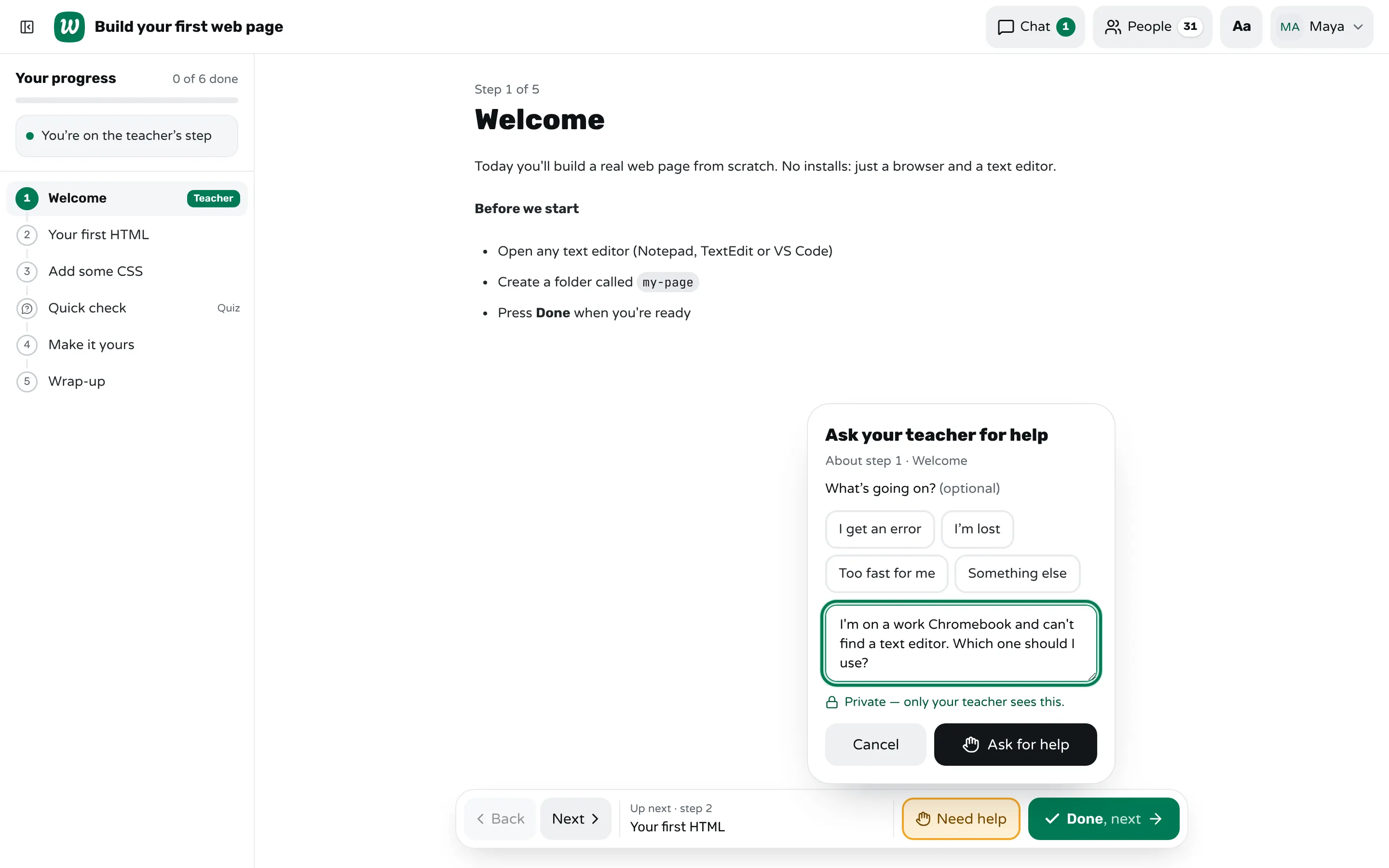
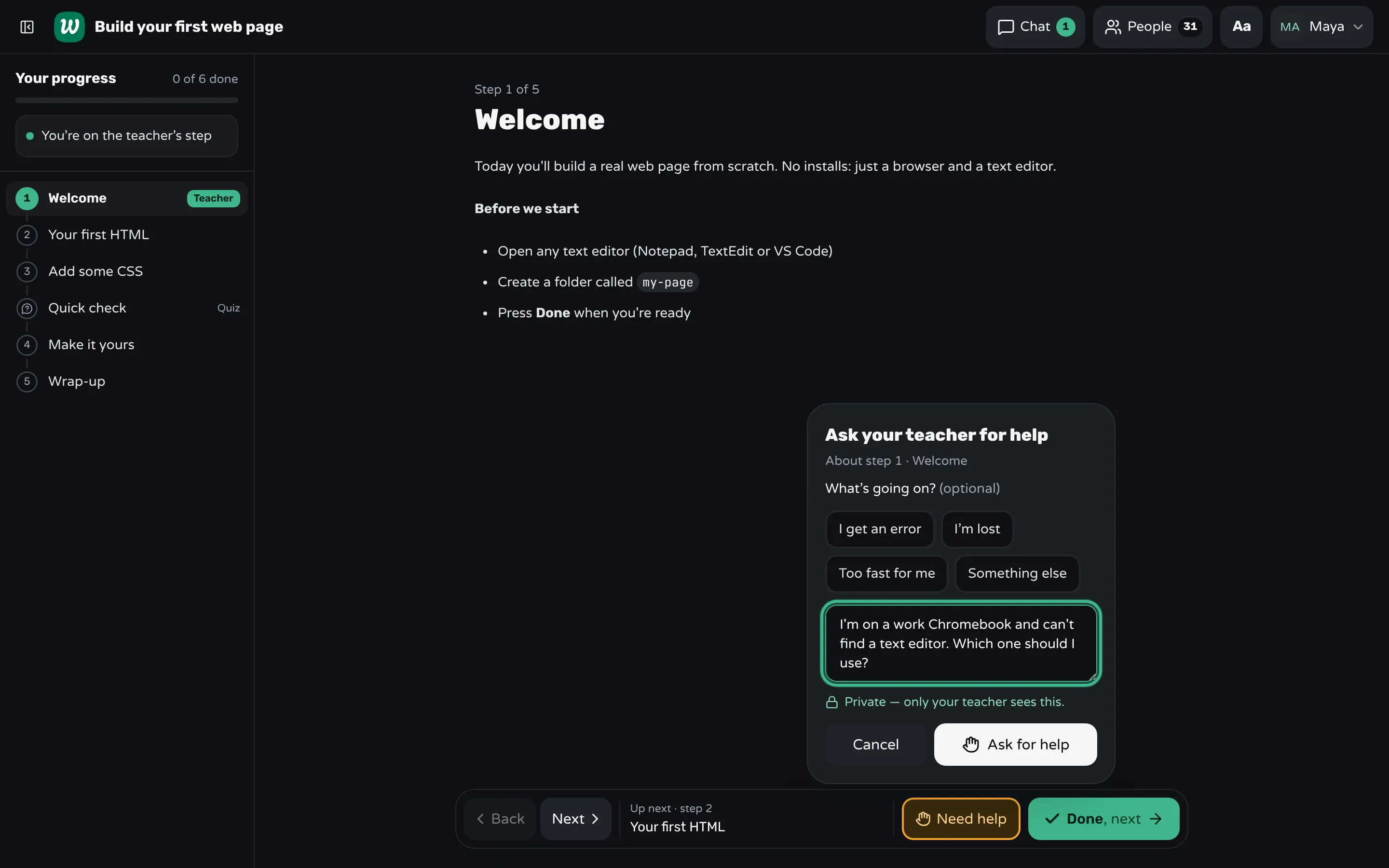
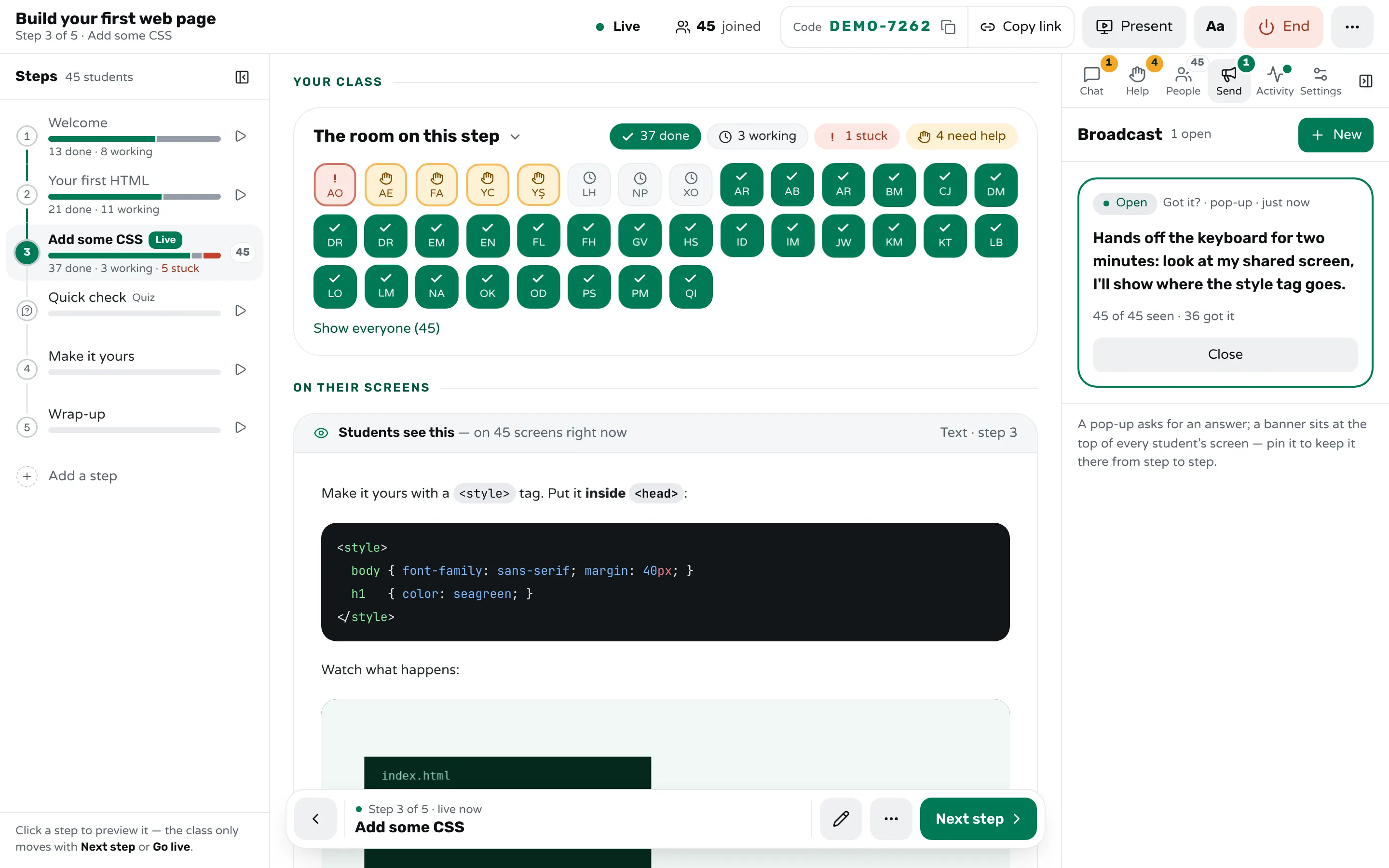
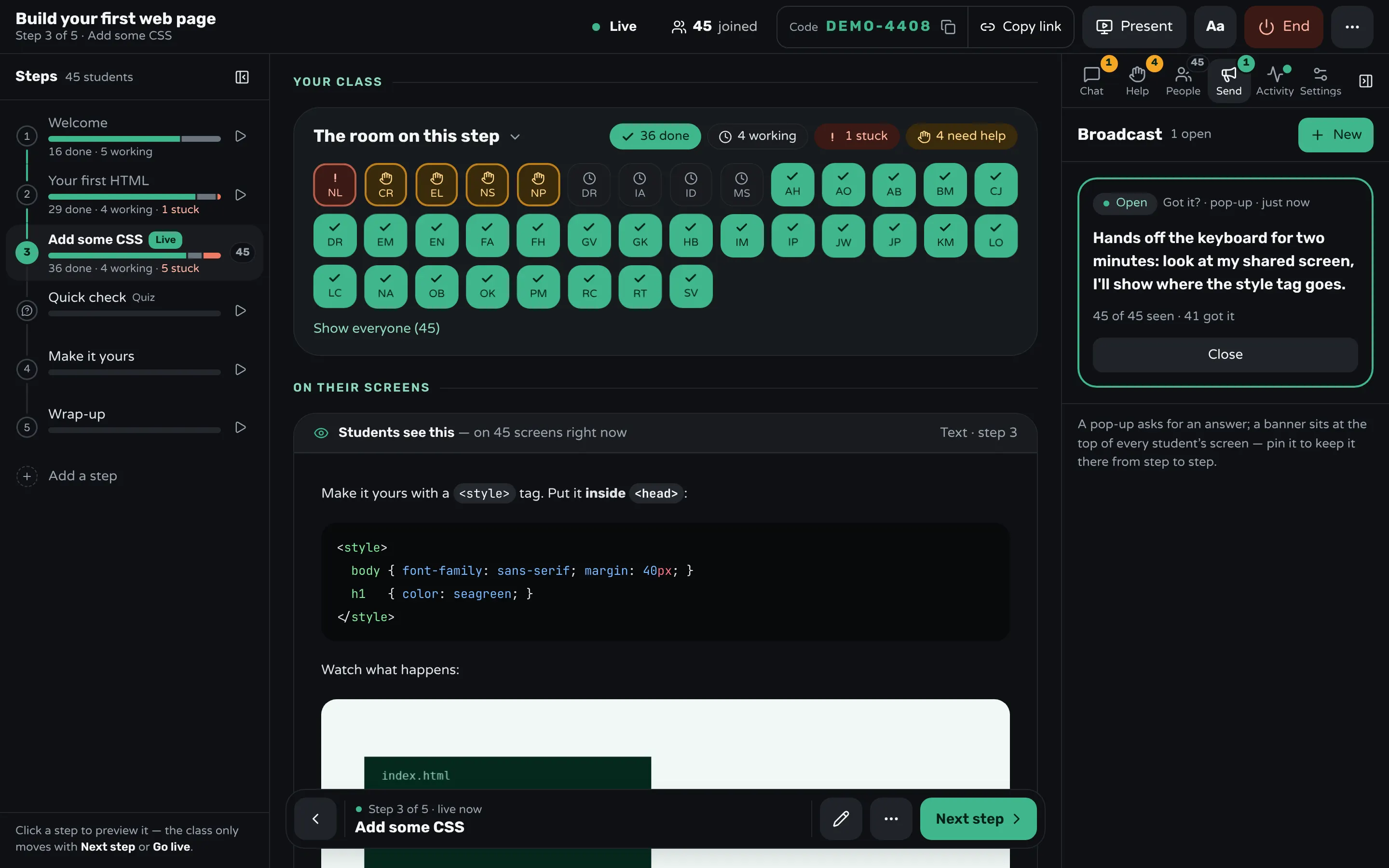
Done is recorded for that step and doesn't fade. Need help opens a short form with quick reasons ("I get an error", "I'm lost") and a note, marked "Private — only your teacher sees this", and the button stays as Asked until you resolve the request or they cancel it. On your screen, the room shows a tile for each student on the current step, done or still working, with the ones asking for help in amber, and the Help tab lists the requests oldest first, with their notes and Resolve.
To stop everyone, Send a pop-up with a Got it button: it appears on every student's screen, and you see how many have seen it and how many pressed Got it. Bring everyone moves the whole class to your step. If you share a screen in the call, share Present: the step, large, without names. One limit: the help list is on the teacher's screen only, and there's no helper role yet. If a helper takes a breakout room, tell them whose request to answer.
Sources
- Greg Wilson, Teaching Tech Together: Sticky Notes (2019)
- Frank Castelli and Mark Sarvary, Why students do not turn on their video cameras during online classes and an equitable and inclusive plan to encourage them to do so (Ecology and Evolution, 2021)
- James Acris, Patrick Austin, Eli Chadwick, Ivan Finch and Kyle Pidgeon, Experiences running hybrid Carpentries workshops (Software Sustainability Institute, 2023)
- Zoom Support: Using non-verbal feedback and meeting reactions
- Zoom Support: Participating in meeting breakout rooms
- Microsoft Support: Express yourself in Microsoft Teams meetings with live reactions
- Microsoft Support: Raise your hand in Microsoft Teams meetings
- Microsoft Support: Join a breakout room in Microsoft Teams
Frequently asked questions
Should I require participants to turn their cameras on?
No. In Castelli and Sarvary's survey, 90% of students had their cameras off at least some of the time, often for reasons outside their control, such as a weak connection or other people in the room. Encourage cameras, and get your signals of who is done and who is stuck from somewhere else.
How do I know who has finished an exercise on Zoom?
Ask everyone to press Yes in the non-verbal feedback when they finish, not an emoji reaction, which disappears after 10 seconds. Read the Participants panel before you move on, and clear the icons for the next task.
Can participants ask for help from a breakout room?
On Zoom, yes: Ask for Help in the meeting controls asks the host to join that room. Teams has no such button, but each room has its own chat that the organizer can read.
Does Workshopy replace Zoom or Teams?
No. Workshopy has no video or audio. Keep the call for talking and screen sharing, and run the lesson in Workshopy beside it, where each participant's done and help signals stay until you've read them.
Keep reading
How to run a help queue in a classroom
Keep one list of who needs help, take it in order, keep each visit short, and explain a repeated problem to the whole room at once.
6 min read · 20 Oct 2026
See who's stuckHow to tell which students are stuck in a hands-on class
Stuck students rarely raise a hand. Give every step a done signal, look for who hasn't sent it, and help the right student first.
3 min read · 19 Oct 2026
Hands-on & coding workshopsHow to teach adults in a hands-on workshop
Start with something useful the same day, match the help to what each person knows, keep mistakes private, and never call anything "just".
5 min read · 21 Oct 2026
See it with a class of 45. No sign-up.
The live demo runs the real product with a simulated class. When you're ready, start free.