
How to get everyone set up in the first five minutes
By the Workshopy teamPublished 8 min read
You can't fix every laptop in five minutes, and you don't need to. Do the installing before the day, from one setup page that ends in a check people run themselves. Then spend the first five minutes sorting the room: everyone joins from a link on the screen, runs the same check, and says whether it passed. Start teaching the people who are ready, and send help first to the people who can't do anything at all.
Why setup eats the first hour
Greg Wilson, who founded Software Carpentry, sums it up: "getting software installed is often harder than using it." Beginners don't yet know about system paths or where configuration files hide, and a room holds several versions of Windows, macOS and Linux, so a new tool almost always fails for at least one person. Detailed instructions don't solve it on their own: some people won't read them, and no write-up is clear to everyone.
Alise Ponsero and colleagues, writing about the data science workshops they run, advise planning at least an hour or two on the first day to get everything configured, even when people were asked to install beforehand. That hour costs the most when the whole class waits through it while you go from laptop to laptop. The first five minutes can't make the fixing disappear. They can tell you who is ready and who isn't, so the fixing runs beside the lesson instead of in front of it.
Before the day: one setup page that ends in a check
Write one page, link it from the invitation, and email it twice: a week before and again the day before, as The Carpentries advise their instructors. On it:
- What to install, for each system. Separate instructions for Windows, macOS and Linux, with the versions you'll teach. Say plainly what won't work, such as a Chromebook, a tablet or a laptop that can't install software.
- Accounts to create at home. Anything that sends a confirmation email or a code to a phone, such as GitHub or a cloud tool, should be done before the day, not on the classroom Wi-Fi.
- The files for the day. One folder to download, with the data and starter code in it.
- A check, and what success looks like. "Open a terminal and type
git --version. You should seegit versionand a number." A check tells people whether they're ready; a list of installers doesn't. - What to do if the check fails: an address to write to, or a time to arrive early for help.
Test the page yourself on a fresh user account, the way a participant's laptop starts out. If people will bring work laptops, ask early whether they're allowed to install software at all. On a locked-down laptop the fix belongs to IT, and it takes days, not minutes.
Then accept that a few people will arrive without it done. As Wilson notes, some ran into problems, some couldn't find the time, and some never follow instructions in advance. The check will find them.
Put the join link on the screen before anyone sits down
The first five minutes start before the start time. Have the projector showing everything a person needs to begin on their own:
- the Wi-Fi network and password;
- the link to the lesson, short enough to type, with a code or a QR code;
- three lines: join, run the check, say whether it passed.
People who arrive early start without you, and you can walk the room instead of reading out a password eight times. Bring the screen back after each break for the people who arrive late.
Make the first task the check
The first task is the same check as on the setup page, now on everyone's screen. It's Wilson's advice too: have everyone run a simple command as soon as they arrive and show the result, then get helpers and other learners to help whoever ran into trouble.
Check your setup

Open a terminal (Git Bash on Windows)
and type:

    git --version

You're done when you see "git version"
and a number.

Anything else? Ask for help and paste
what you see.
Make the check cover everything the day needs in one go: online, signed in, the tool running, the files in place. A good check prints one line when it passes. Don't teach anything in this step. Its only job is to split the room into ready and not ready, and to give the people who are ready a first result before you ask for anything harder.
Ask for the result, not a nod. "Is everyone ready?" gets silence. A done signal from each person shows you who is through: Wilson hands out sticky notes, green on the laptop for done and orange for help. And a request that says what went wrong ("it says command not found") is half solved before you reach the desk.
Help the people who can't start, first
When the hands go up, don't take them in the order you see them. Sort them by how stuck they are:
- Can't get online or can't join. They can do nothing. Fix the Wi-Fi or the link first: it's often the quickest fix.
- The tool won't run. They can't do the exercises. Give them a way to follow now (see below) and fix the install at the first break.
- It runs, but something is off, such as an old version or a warning. They can start. Fix it when it matters.
Within each group, help the person who has waited longest, and keep one list so nobody is skipped. If the same error shows up three times, stop fixing it laptop by laptop and show the fix to the whole room.
Helpers make this work. The Carpentries recommend one helper for every 8 to 10 learners, not counting the instructors, and helpers who use Linux, Mac and Windows between them, each having read the setup instructions beforehand. A helper still at one laptop after five minutes should give that person a way out and move on.
When most of the room has passed, start teaching. Don't wait for the last laptop. The people still fixing keep going with a helper, and the first exercise waits for them.
Have a way out for the laptop that won't cooperate
Some setups won't be fixed in the room. Decide the ways out before the day:
- A neighbour's screen. The Carpentries' advice for latecomers and serious problems: watch, and maybe work with a neighbour, until the first coffee break, then keep working on the install.
- A browser version of the tools, with everything installed. It depends on the room's Wi-Fi, and people don't leave with their own laptop ready for real work, so keep it as the way out, not the plan.
- A loaner laptop or two, set up the day before.
- A USB drive with the installers, if the Wi-Fi is too slow for big downloads.
A virtual machine on people's own laptops looks like a shortcut, but Wilson found it brings problems of its own: older or smaller laptops are too slow to run one, and people struggle to switch between two sets of keyboard shortcuts.
Running it in Workshopy
In Workshopy the setup check is the lesson's first task, a step of its own. Put the command in a code block, which gets a copy button, and end the step with "You're done when…". Start the class: the top of your screen shows a six-character join code and a button that copies the link. Participants open the link, type a name and they're in, with no account or app. The code leaves out characters people mix up: there's no 0, O, 1, I or L.
On the projector, Present has a join screen (the QR button, or J): the address to go to, the code in big letters, a QR code, and how many have joined. Turn on Join QR on screen in the class's Settings and Present opens on it at the start of the class, with a small join card in the corner for latecomers after that. Someone whose laptop is still installing can scan the code with their phone and follow the lesson there meanwhile.
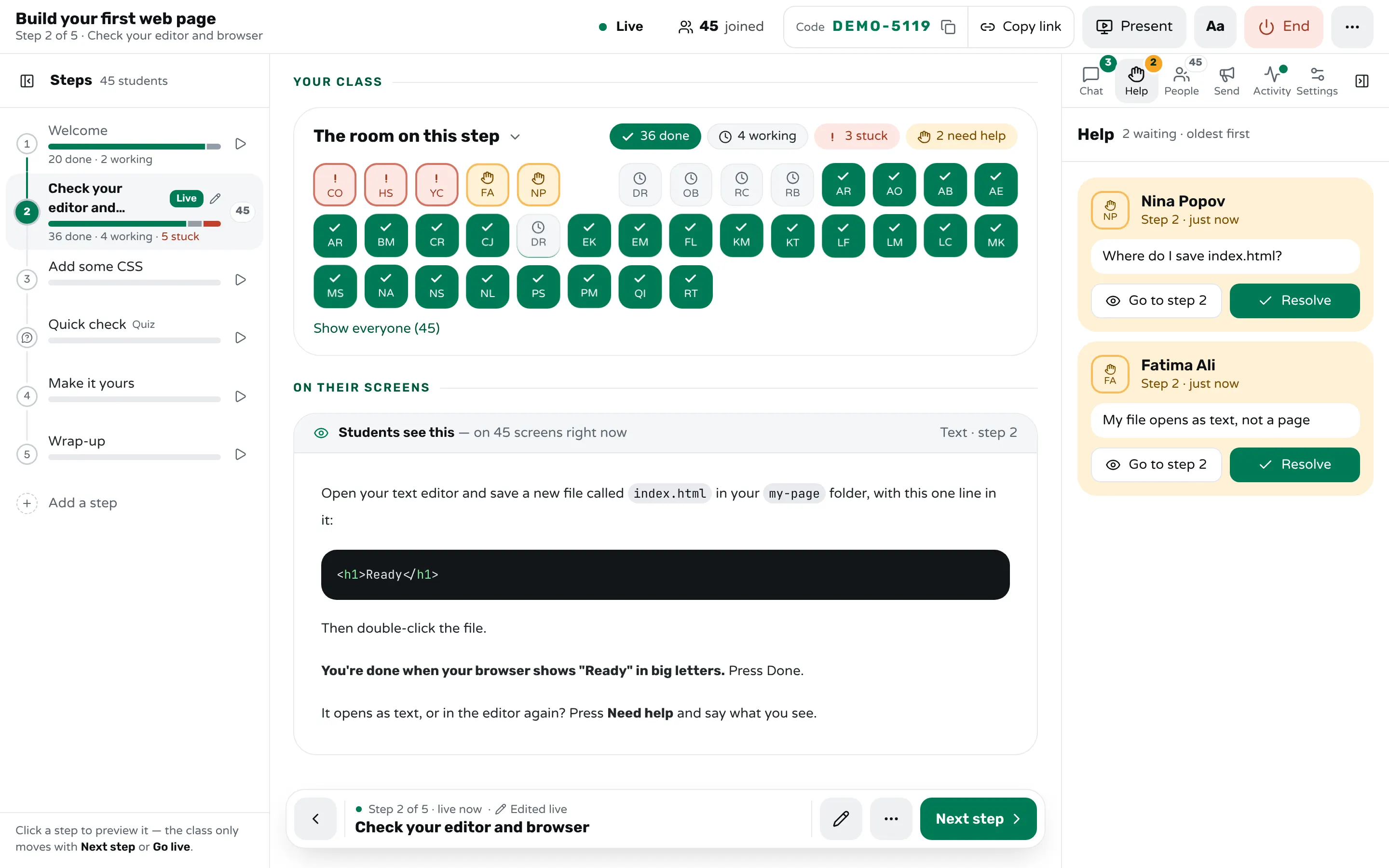
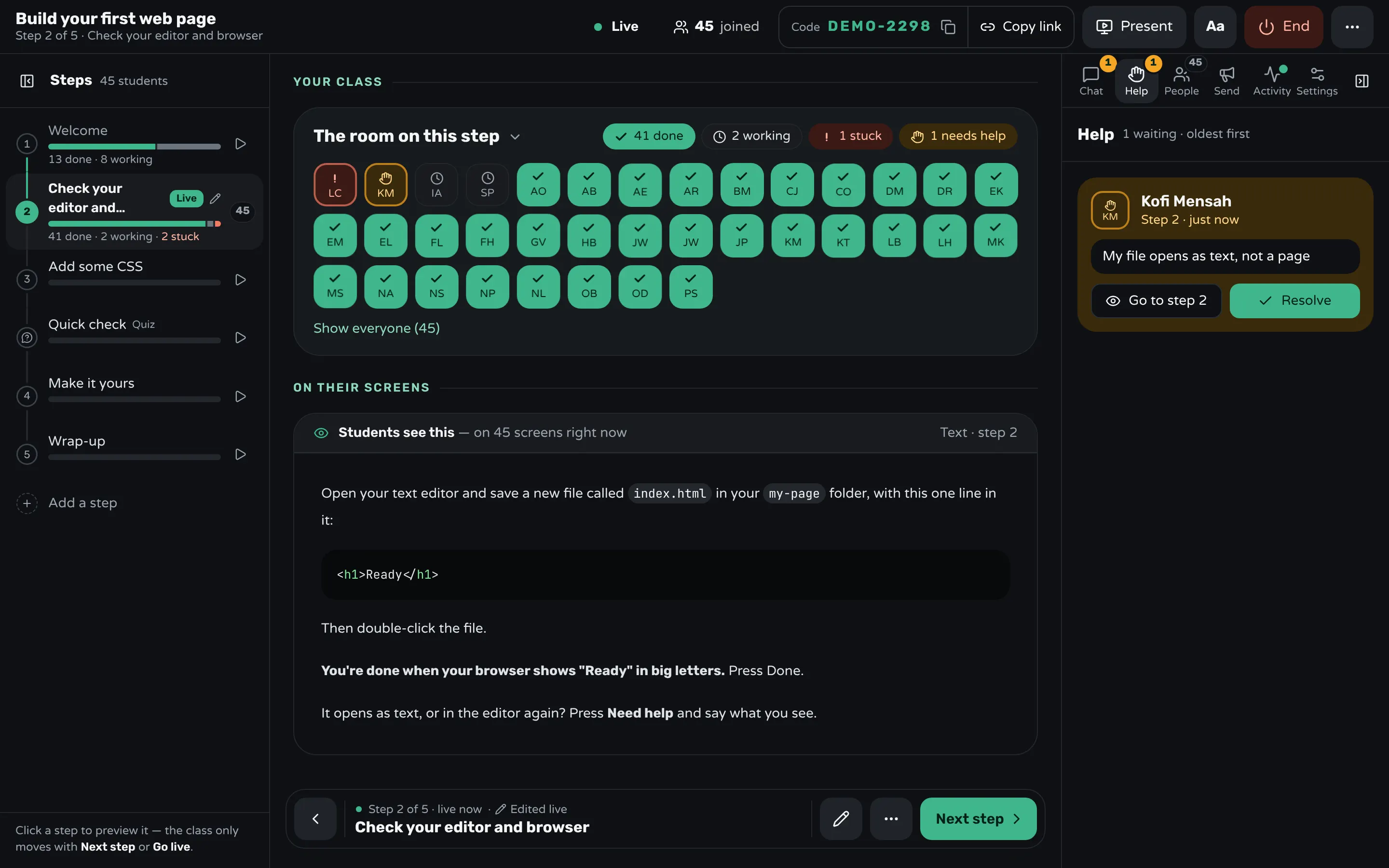
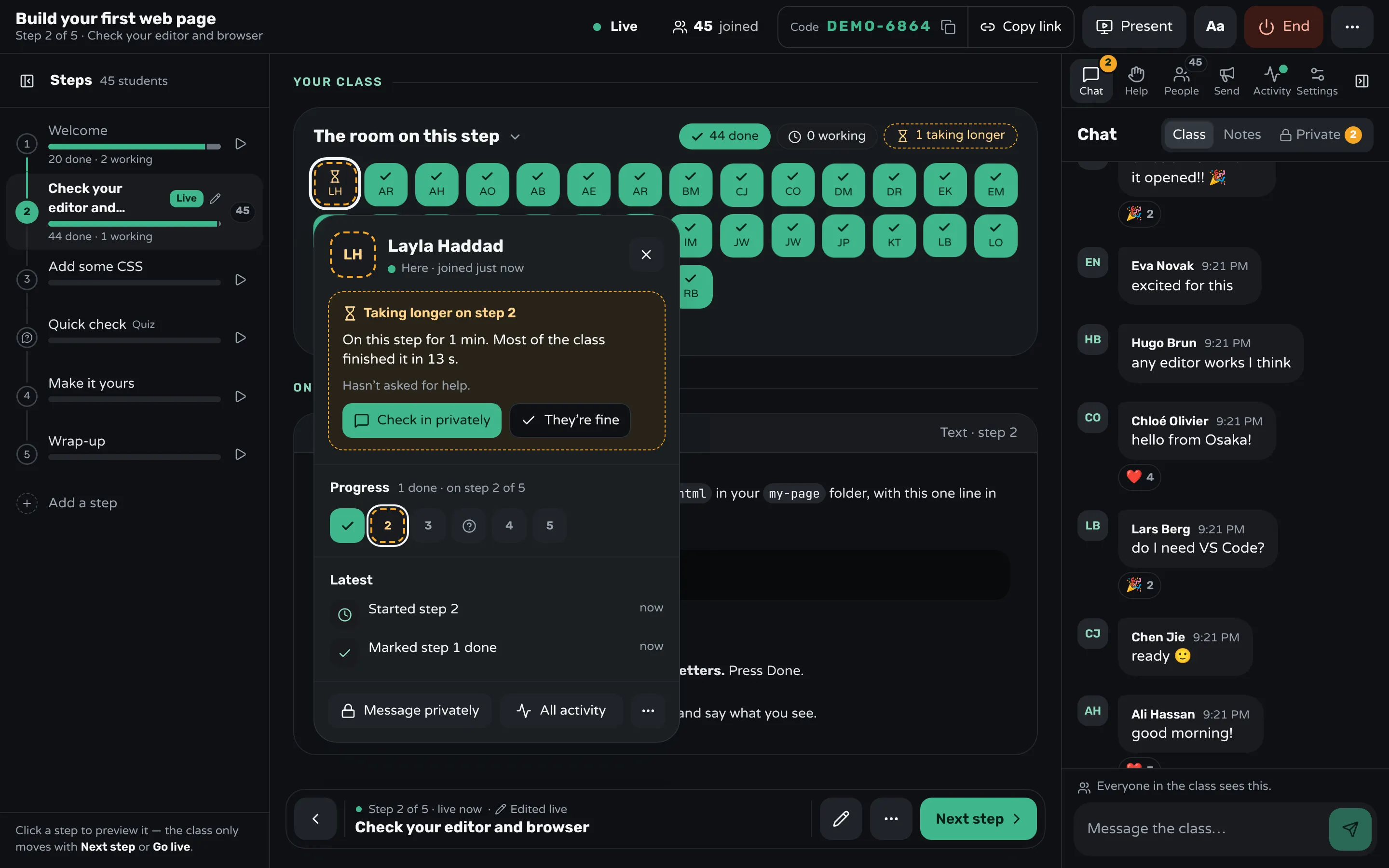
On the step, participants press Done when the check passes, or Need help, which opens a short private form with quick reasons ("I get an error", "I'm lost") and a note for what they see. Your screen shows a tile for each participant, done or still working, with the ones asking for help in amber, and the Help tab lists the requests oldest first, with their notes. Spot students who take longer watches for the person who's stuck and hasn't said so: once half the class has finished the step, it marks anyone who has been on it much longer than most without asking. Only you see the mark, and their card offers Check in privately.
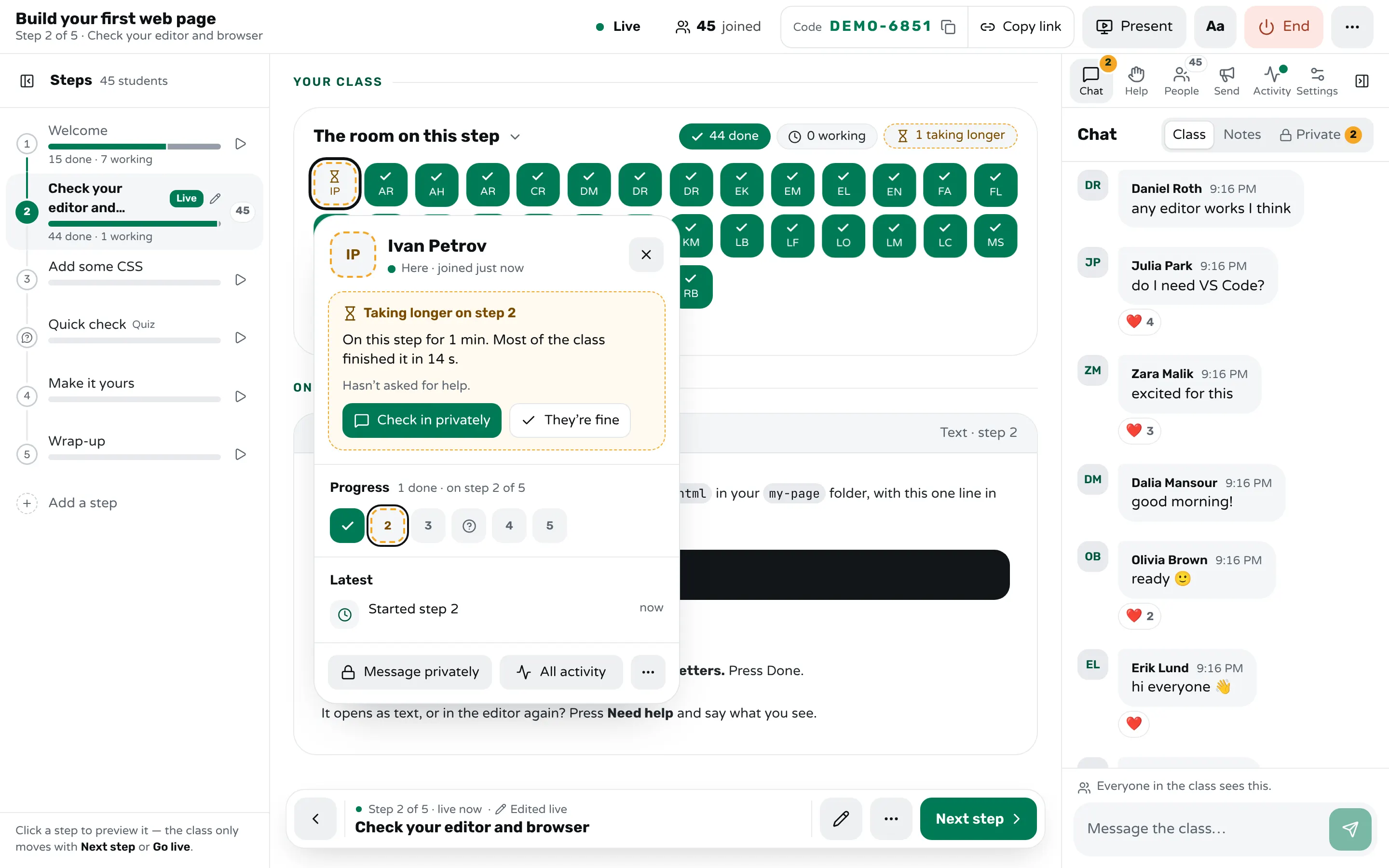
If the setup page had a mistake, such as a renamed installer, edit the step during the class and every screen updates. Someone who joins late lands on the step you're on; with Look back on, they can open the setup step on their own. Check the class fits before the day: on the Free plan a class has 30 seats, and when every seat is taken, new arrivals wait until one frees up. There's no helper screen yet: the help list is on yours, so tell each helper whose request to take.
Sources
- Greg Wilson, Teaching Tech Together: Setting Up Your Learners (2019)
- Greg Wilson, Teaching Tech Together: Sticky Notes (2019)
- Greg Wilson, Software Carpentry: lessons learned (F1000Research, 2016)
- Alise Ponsero and colleagues, Ten simple rules for organizing a data science workshop (PLOS Computational Biology, 2020)
- The Carpentries Handbook: Tips for Instructors, Handling Software Installation
- The Carpentries Handbook: Workshop Checklists
Frequently asked questions
How long should setup take at the start of a workshop?
The check itself takes a few minutes if people installed beforehand. Fixing what it finds can take much longer, so run the fixing beside the lesson with helpers, and start teaching once most of the room has passed.
Should participants install the software before the workshop?
Yes: from one page with instructions for each system and a check at the end, sent a week before and again the day before. Expect a few people to arrive without it done, and make the first task the same check so you find them at once.
What if someone's work laptop won't let them install anything?
Ask the organization's IT before the day, since the fix is theirs. On the day, give that person a browser version, a loaner laptop or a neighbour's screen.
How many helpers does a hands-on workshop need?
The Carpentries recommend one helper for every 8 to 10 learners, not counting the instructors, with Windows, Mac and Linux users among them.
Should everyone just use a browser-based environment?
It removes the installs, but the class then depends on the room's Wi-Fi, and people don't leave with their own laptop ready for real work. Many teachers keep it as the way out for the laptops that won't cooperate.
Keep reading
How to run a hands-on coding workshop
Plan short steps that each end in working code, write the code live and slowly, and keep a queue for students whose code won't run.
4 min read · 19 Oct 2026
See who's stuckHow to run a help queue in a classroom
Keep one list of who needs help, take it in order, keep each visit short, and explain a repeated problem to the whole room at once.
6 min read · 20 Oct 2026
Hands-on & coding workshopsHow to run a hands-on AI workshop for beginners
Sort out accounts before the day, make the first step prove the tool answers, and give beginners tasks whose answers they can check.
8 min read · 23 Oct 2026
Ready-made lessons from the library
Meet Workshopy — A Live, Interactive Product Tour
A live, interactive product tour of Workshopy for new users. It runs as a real Workshopy session, so the audience experiences the product as participants while…
16 steps · ~120 min · Free
OtherIntro to Git — Snapshots, Branches & Sharing
A short, hands-on first lesson in Git for complete beginners. Students build the mental model one idea at a time — snapshots, the three areas…
10 steps · ~65 min · Free
ScienceHow Epidemics Spread — R, Curves and Herd Immunity
An interactive first look at how infectious diseases spread through a population — and what stops them.
9 steps · ~60 min · Free
Learn any of them on your own, free, or copy one and teach it live. Browse the library
See it with a class of 45. No sign-up.
The live demo runs the real product with a simulated class. When you're ready, start free.