
How to run a corporate Excel training session
By the Workshopy teamPublished 8 min read
Build the session around the tasks your colleagues already do in Excel, not around the menus. Give everyone the same practice file, break the work into short tasks that each end in a number they can check, and plan for a room where some people have never written a formula and others want pivot tables. Ask for the numbers as you go, so you know who is behind before the coffee break, not after the session.
Start from the work, not the ribbon
Ask the manager who booked the training, and two or three of the people coming, what they do in Excel every week. You will hear things like "I copy the sales export into last month's file and fix the totals" or "I look up each customer's region by hand". Those sentences are your syllabus.
A training that walks the ribbon tab by tab teaches people where things are and leaves them unable to do anything. John Carroll's research on training manuals, summarised in Teaching Tech Together, starts from a user's complaint: "I want to do something, not learn how to do everything." Carroll rewrote training as one self-contained task per page: what it does, the steps for that one thing, then how to recognise the usual problems. The materials got shorter and people learned faster.
So each part of the session is a job, not a feature:
- Total a column and see why the total is wrong. SUM, a range that misses a row, numbers stored as text.
- Count and add by category. COUNTIF and SUMIF on a region or a product.
- Look something up in another table. XLOOKUP, or VLOOKUP where the company's Excel is older.
- Turn a list into a summary. A table, then a pivot table.
Three or four jobs fill a three-hour session. Pick fewer and do each well.
Build one practice file
Make one workbook that looks like the company's data, with the problems real data has: a few numbers stored as text, a region typed "North " with a space at the end, a date column in two formats, a blank row in the middle. Don't use real customer or salary data. Copy the shape and invent the values.
Data Carpentry's spreadsheet lesson does the same: its teaching dataset is a real research table "intentionally 'messed up' for this lesson". Messy data is what people meet on Monday morning, and a clean demo file hides every mistake they will make.
Put each task on its own sheet, or give each task a clearly marked area, and keep a finished copy with every answer for yourself. Send the file the day before with one line: open it and check it isn't read-only. A file that opens in Protected View, or only in the browser, is the most common way a session loses its first ten minutes.
Check which Excel everyone has
The room will not all have the same Excel. Some will be on Windows, some on a Mac, a few in Excel for the web, and in a large company someone will still be on an older version. Data Carpentry's instructor notes call this the main challenge of its spreadsheet lesson: "Excel looks very different" between Mac and PC, and "the instructor's version of the spreadsheet software is going to look different than about half the room's."
Two things help:
- Ask before the day, or in the first minute: Windows, Mac or browser, and which version (File, Account, About Excel). Teach from the one most people have.
- Check the functions you plan to use. Microsoft's own page for XLOOKUP notes that it isn't available in Excel 2016 and Excel 2019. If part of the room is on those, teach VLOOKUP alongside it or give them a version of the task that works.
Write formulas into the instructions as text people can copy, not only as screenshots. A screenshot from your Excel won't match theirs; =COUNTIF(C2:C201,"North") works in all of them.
Make every task end in a number
A task is finished when the person can see it worked. In Excel that is usually a number: the total, the count, the value the lookup returned. Write each task so its last line says which cell to look at and what kind of answer to expect.
For example:
Open the Orders sheet of
q3-orders.xlsx. In G2, count how many orders came from the North region:=COUNTIF(C2:C201,"North"). You're done when G2 shows a number. Paste it below.
Ask for the number, not "are you done". A number lets you tell a right answer from a wrong one at a glance, and the wrong answers tell you why. In the example, a count of 31 means the person's formula is fine and the data isn't: six cells say "North " with a space. That's a better lesson than any slide on TRIM.
Spreadsheet errors are common even among people who build spreadsheets for a living. Raymond Panko's review of fifteen years of studies concluded that they are "both common and non-trivial", and that the one technique shown to work was checking cell by cell. A habit worth teaching in every task: before you trust a total, check it another way, with the status bar's Sum or a count of the rows.
Teach a room of mixed levels
Corporate Excel training almost always mixes levels: the person who has used Excel for twenty years next to the one who types totals into a calculator. Teaching Tech Together names the risk, "a third of your class is lost and a third is bored", and gives the remedies:
- Show the level before the session with a sample task, not a list of topics. "If you can already do this, come to the advanced session" sorts people better than "Excel basics".
- Give every task an extra part for whoever finishes early: count North orders over 500 with COUNTIFS, or make the region a cell people can change.
- Watch for the people falling behind and get to them early, before they stop trying.
- Seat people so they can help each other, and let the fast finishers do it.
Let people work at their own pace through the same tasks, with you moving between them, rather than everyone waiting for one click at a time. A few will get through twice as much. Everyone leaves having done something.
Run the session in short loops
Each task is the same loop of about fifteen minutes:
- Show it once on your screen, with the font large and the formula bar visible. Say the formula out loud as you type it.
- Let them do it on their own copy, on the next sheet or a slightly different question, not the one you just showed.
- Collect the answers, and talk about the wrong ones. "Who got 31? Here's why."
- Say what they'd use it for in their own work, in one sentence.
Keep the demos short. Watching someone else click is the least useful part of a training, and adults notice when it goes on.
Leave the last fifteen minutes for people's own files. Someone will bring the report they actually make every Monday. Helping them do one real job with what they learned is what makes the training stick.
Run it in Workshopy
In Workshopy each task is a step that people follow in their browser, next to their own Excel. They join at workshopy.io/join with the session's code and a name, without making an account, so there is nothing for IT to approve.
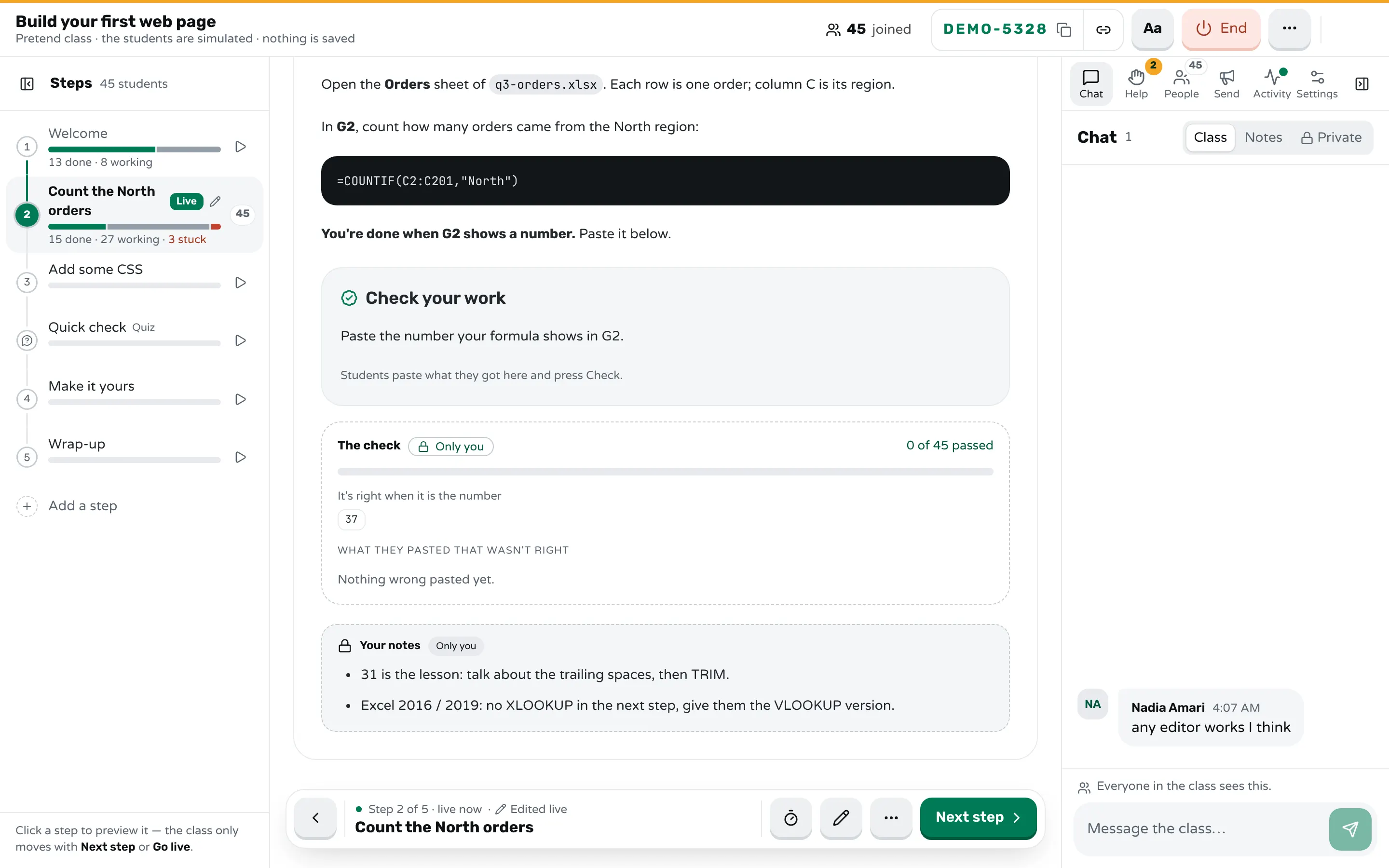
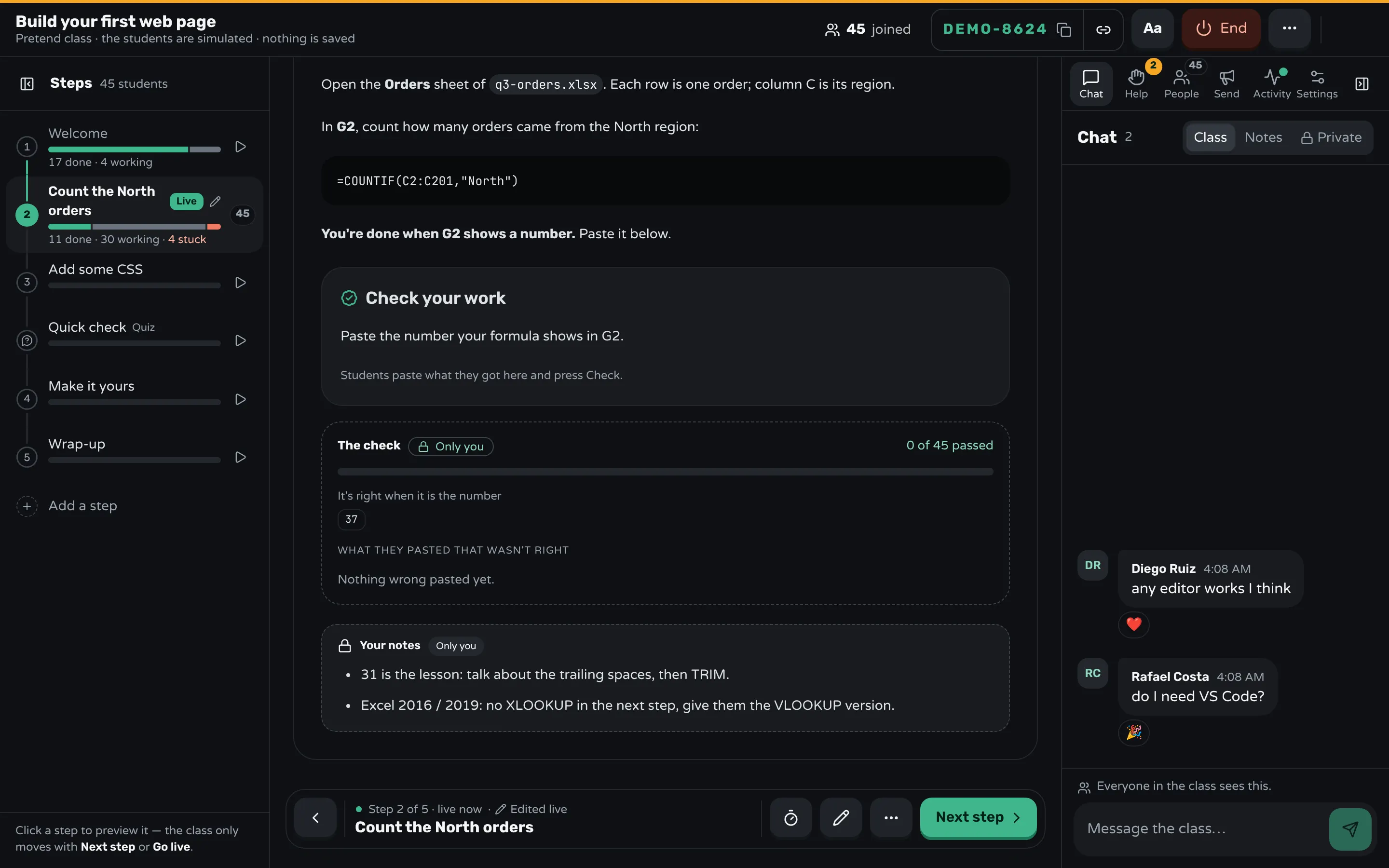
End each step with a Check your work block. People paste the number their formula gave and press Check, and the server compares it with your answer, so the answer never reaches their screens:
```check
Paste the number your formula shows in G2.

number: 37

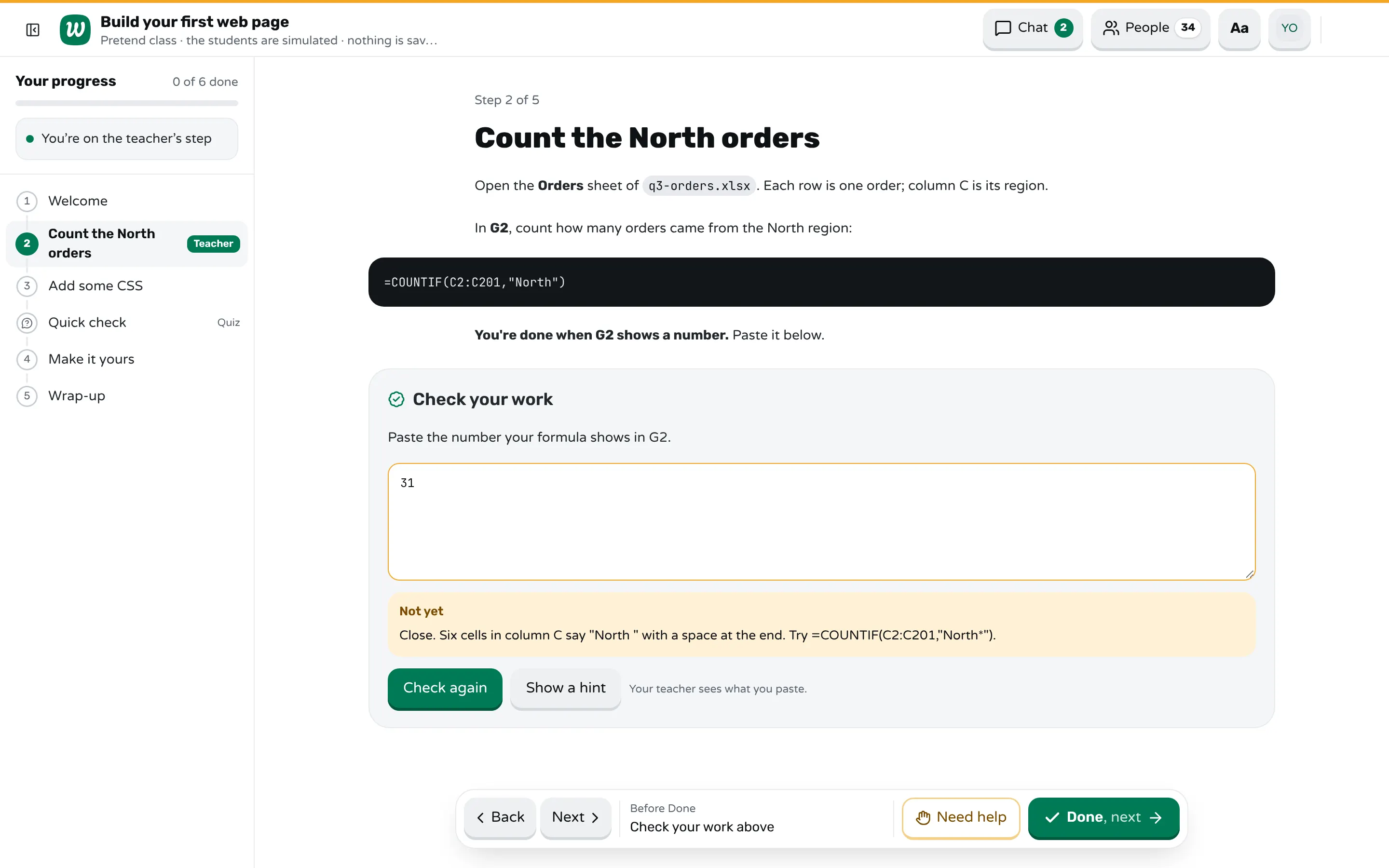
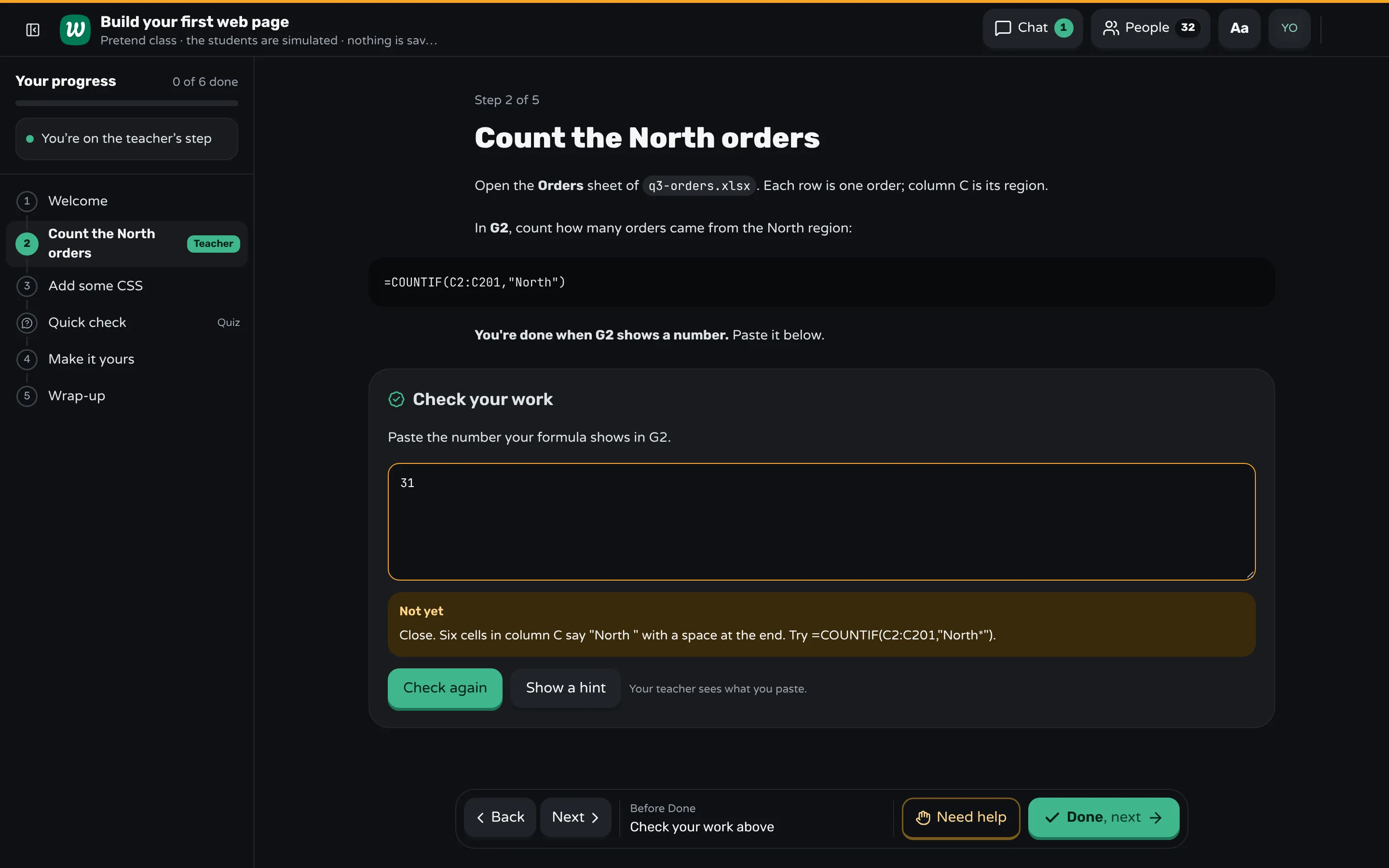
mistake: 31 → Close. Six cells in column C say "North " with a space at the end. Try =COUNTIF(C2:C201,"North*").
mistake: 0 → Excel found no "North". Check the quotes around North and that the range is C2:C201.
hint: The region is in column C. Start the range at C2, under the header.
```
A paste that matches a mistake you foresaw gets your words for it at once, so the person with 31 learns about trailing spaces without waiting for you. A right answer marks the step done. On your screen, marked Only you, you see how many have passed and the wrong answers grouped, so "who got 31?" is a fact, not a guess. A teacher block in the step holds your own notes, such as where VLOOKUP replaces XLOOKUP for the people on Excel 2019.
Need help sends a request with a reason and a note, and the Help tab lists them oldest first. The room shows everyone by name with their state, and marks people who are taking much longer than the rest without having asked, so you know who to sit with. The step timer counts down on every screen when you say "ten minutes for this one". After the session, the report shows each step: who finished, who asked for help, and the wrong answers for each check, which is the evidence the manager who booked it usually wants.
Frequently asked questions
What should Excel training for employees cover?
What they do in Excel every week. For most office teams that means totals and the errors in them, COUNTIF and SUMIF, lookups with XLOOKUP or VLOOKUP, and a pivot table. Ask the team before you plan, and leave out what nobody uses.
How long should an Excel training session be?
Three hours is enough for three or four jobs done well, with a break. A longer course works better as several shorter sessions a week apart, so people use what they learned between them.
How do you teach Excel to people with different skill levels?
Show a sample task before the session so people can pick the right level, give every task an extra part for fast finishers, and let people work through the tasks at their own pace while you move between them.
Should employees use their own files in Excel training?
Not for the tasks: one shared practice file means everyone's answers can be compared. Leave the last part of the session for their own files, so they apply what they learned to a real job before they leave.
How do you know if Excel training worked?
Ask for the result of every task during the session, so you see who could do it. A few weeks later, ask whether they used it in their work, and look at whether the task that took an hour now takes ten minutes.
Keep reading
How to teach adults in a hands-on workshop
Start with something useful the same day, match the help to what each person knows, keep mistakes private, and never call anything "just".
5 min read · 21 Oct 2026
Run a live classHow to pace a lesson when students work at different speeds
Plan a core task everyone finishes, extra work for whoever finishes first, and a checkpoint where the class meets before the next idea.
7 min read · 28 Oct 2026
Run a live classHow to measure whether a training session worked
Decide what people should be able to do, measure it during the session and with a task at the end, and check weeks later if they use it.
5 min read · 21 Oct 2026
Ready-made lessons from the library
Intro to Git — Snapshots, Branches & Sharing
A short, hands-on first lesson in Git for complete beginners. Students build the mental model one idea at a time — snapshots, the three areas…
10 steps · Free
Teacher trainingMeet Workshopy — A Live, Interactive Product Tour
A live, interactive product tour of Workshopy for new users. It runs as a real Workshopy session, so the audience experiences the product as participants while…
16 steps · Free
ScienceHow Epidemics Spread — R, Curves and Herd Immunity
An interactive first look at how infectious diseases spread through a population — and what stops them.
9 steps · Free
Learn any of them on your own, free, or copy one and teach it live. Browse the library
See it with a class of 24. No sign-up.
The live demo runs the real product with a simulated class. When you're ready, start free.