
How to teach with a projector and students' phones
By the Workshopy teamPublished 8 min read
Split the work between the screens. The projector shows what the whole room shares: how to join, the step you're on, a timer and how many have finished. Each student's phone or laptop shows the lesson itself, at a size they can read from their seat, with a way to say "done" or "I need help". Then give the phone a job every few minutes, so it is the lesson in their hand, not a distraction in their pocket.
Decide what each screen is for
A projector is good at one thing: showing everyone the same thing at once. It is bad at text. From the back row, a slide of instructions or forty lines of code is a grey blur, and the student who can't read it waits, or copies it wrong.
So keep the projector for what the room shares:
- How to join: the address and the code, big, before anyone sits down.
- Where the class is: the step's title, so a student who looked away knows where to look.
- What you're showing right now: the one line of code you're explaining, the diagram you point at.
- Time and progress: a countdown for the exercise, and how many have finished, with no names.
And give each student's own screen what they need to work: the full text of the step, the code they'll copy, the answer they'll type. The text is in their hand at a size they choose, and it is still there when you've moved on to the next slide.
If you only have a projector, make its text far bigger than feels right. The Carpentries' instructor training gives live coders the same advice: use a big font, maximise the window, prefer dark text on a white background, and raise the bottom of the window when the bottom of the projector screen is at the height of the learners' heads.
Get everyone in from the projector
The first five minutes decide whether the phones help or hurt. Put the join screen up before the class starts: one short address, a code of a few characters, and a QR code for those who'd rather scan. A long link nobody can type from across the room means twenty people asking their neighbour.
Make joining one step with nothing to install. An app that must be downloaded on the school Wi-Fi, or a sign-up that sends an email, loses the people whose phone is full or whose password is at home. Ask for a name and nothing else.
Keep the join screen one key away for latecomers, and count who has joined. When the number matches the room, start; when it doesn't, you know before the first exercise. Getting everyone set up in the first five minutes covers the rest of the start.
Phones for reading and answering, laptops for doing
A phone is a good screen for reading a step, copying a command, answering a question and asking for help. It is a poor one for the work itself in most hands-on lessons: nobody writes a spreadsheet formula or a page of code on a phone keyboard.
So when students have both, the phone holds the lesson and the laptop holds the work. A student with one small laptop screen stops flipping between the instructions and their editor: the step sits on the phone beside the keyboard, and the laptop's whole screen is theirs. When students have only phones, plan the lesson for a phone: tasks they can do by reading, choosing, typing a short answer, or working on paper and checking the result.
Check the lesson on a phone before the class does. Open it at phone width and read every step: a wide table, a long line of code or a picture full of small text that reads well on your laptop may need scrolling sideways on a phone. Split the long line, shorten the table, crop the picture.
Give the phone a job every few minutes
The research on phones in class is mostly about phones that have nothing to do with the class. Glass and Kang let 118 students use phones, laptops and tablets in half of a term's lectures and banned them in the other half. Using a device didn't lower the scores on quizzes during the lecture, but it lowered the scores on the exams later, by at least 5 percent. Students who didn't use a device did worse in those lectures too. UNESCO's 2023 report on technology in education takes the same line: a phone belongs in class only when it has a clear role in learning.
So give it that role, and keep giving it:
- Every few minutes, something to do on it: copy this, run it, answer this, press Done when you see the result.
- Talk with the phones down. When you explain at the projector, say so: "phones face down for two minutes, then you'll try it". Explaining and doing at the same time splits attention both ways.
- Make the next action obvious. A phone with "Done" and "Need help" at the bottom of the step is a phone with a job. A phone showing a static page is a phone waiting to be put away.
- Watch who finishes, not whose screen is lit. From the front you can't see what's on thirty phones, and you don't need to: you need to know who did the task. Keeping students focused in a laptop class goes further.
Keep the room together, or let it spread
With a lesson on every screen, students can read ahead or go back, and that's often good: the fast ones don't wait, the slow ones reread. But when you demonstrate or discuss, you want every screen on the step you're talking about.
Decide which steps are which before the class. An explanation or a discussion: everyone on your step. An exercise: each at their own pace, with extra work for whoever finishes first. Then regroup before the next idea. Keeping a class on the same step covers how.
Whatever you choose, every student's screen should say where the class is, so anyone who has drifted can come back without asking.
Teaching this way in Workshopy
In Workshopy the lesson is a list of steps, and every student follows it on their own device: a phone, a tablet or a laptop, in a browser, with no app and no account. Start the class and press Present in the class's header: the projector view opens in a window of its own, which you drag to the projector.
Present opens on the join screen: "Go to" the address, the code in big letters, a QR code ("Or scan with your phone camera") and how many have joined of how many seats. Press Show the step, or →, and the projector shows the step the class is on, its title and its text in large type. Turn on Join QR on screen in the class's Settings to keep a small join card in the corner for latecomers, and J brings the full join screen back. The projector's control bar shows how many students are done with this step and how many are connected, never a name; Hide class progress takes the count off the wall. Move the pointer and Back and Next step appear; a presentation clicker's keys move the class too. A timer you start counts down on the projector and on every student's screen from the same clock.
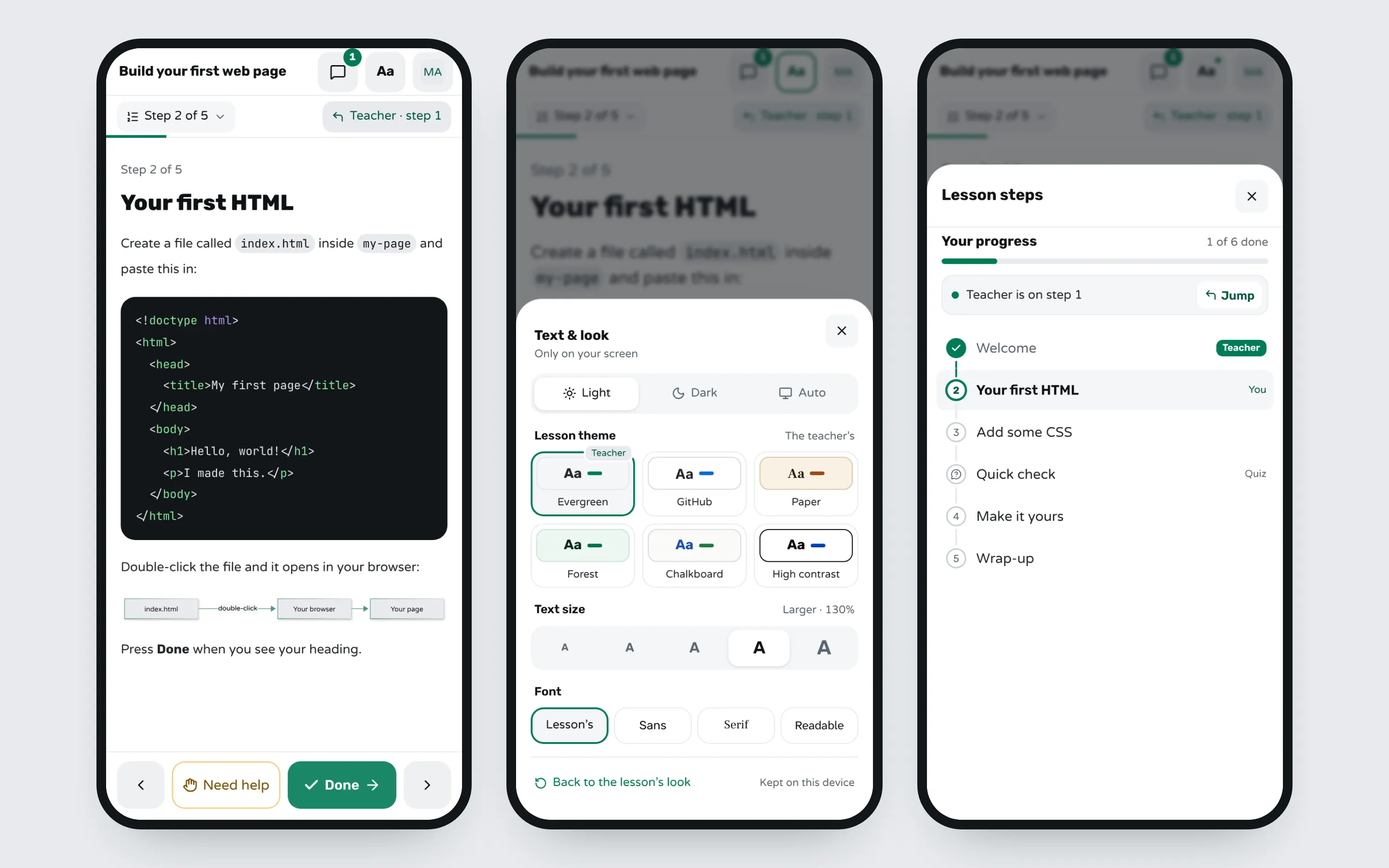
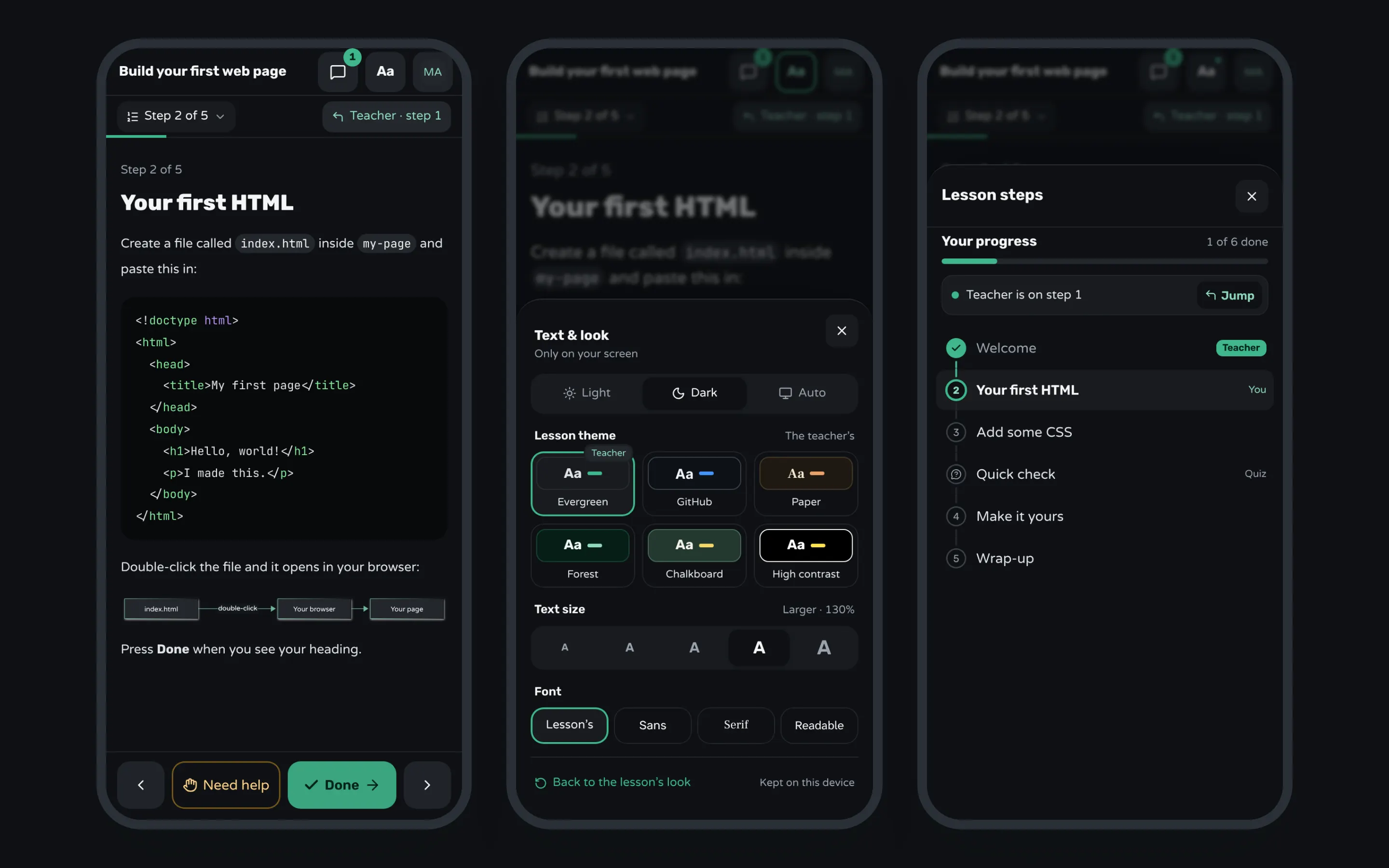
On a phone, a student sees the step with Done and Need help at the foot of the screen, and Step 2 of 5 above it opens the list of steps, where a Teacher tag marks the step the class is on. Code blocks have a copy button. Aa opens Text & look, where each student makes the text larger or picks another font for their own device only; the projector has its own Aa, which changes only the projector. A student who asks for help keeps working, and the request waits in your Help tab, oldest first.
By default students move through the steps on their own, and their screen says where you are, with Jump to come back. Turn on Keep everyone on my step in the class's Settings and every phone follows you as you press Next; Bring everyone moves the whole class to one step in one move. A class on the Free plan has 30 seats.
Sources
- The Carpentries, Instructor Training: Live Coding is a Skill
- Arnold L. Glass and Mengxue Kang, Dividing attention in the classroom reduces exam performance (Educational Psychology, 2019)
- Rutgers University, Cellphone Distraction in the Classroom Can Lead to Lower Grades, Rutgers Study Finds (2018)
- UNESCO, To ban or not to ban? Smartphones in school only when they clearly support learning (2023)
Frequently asked questions
Should students use phones in class at all?
When the phone has a job in the lesson, yes: reading the step, copying a command, answering a question, asking for help. The research that finds phones hurt learning is about phones used for other things while the teacher talks, so keep them down while you explain and give them a task right after.
What should go on the projector and what on students' screens?
The projector holds what the room shares: how to join, which step the class is on, what you're explaining, a timer and how many have finished. The full instructions, the code to copy and the questions to answer go on each student's screen, where they can read them at their own size.
How do I get students to join from their phones quickly?
Show a short address, a short code and a QR code on the projector before the class starts, and ask for nothing but a name: no app to install and no account to create. Count who has joined, and keep the join screen one press away for latecomers.
Can students do a hands-on lesson on a phone only?
For reading, choosing, short answers and checking a result, yes. For typing code or building a spreadsheet, a phone keyboard is too slow: there, the phone holds the lesson and a laptop holds the work.
How big should text be on a projector?
Bigger than it looks on your laptop: test it from the back row before the class. Dark text on a white background reads better than light on dark, and anything long belongs on students' own screens instead.
Keep reading
How to get everyone set up in the first five minutes
Send one setup page that ends in a check, make the first task that same check, and help the people who can't start before anyone else.
8 min read · 27 Oct 2026
Run a live classHow to keep a whole class on the same step
Decide step by step whether the class moves together or at its own pace, check who is behind before you move on, and regroup in one move.
2 min read · 19 Oct 2026
Run a live classHow to keep students focused in a laptop class
In a hands-on class the laptop is the work: give it a task every few minutes, keep talks short, and watch who finishes, not screens.
4 min read · 21 Oct 2026
Ready-made lessons from the library
Intro to Git — Snapshots, Branches & Sharing
A short, hands-on first lesson in Git for complete beginners. Students build the mental model one idea at a time — snapshots, the three areas…
10 steps · ~65 min · Free
Teacher trainingMeet Workshopy — A Live, Interactive Product Tour
A live, interactive product tour of Workshopy for new users. It runs as a real Workshopy session, so the audience experiences the product as participants while…
16 steps · ~120 min · Free
ScienceHow Epidemics Spread — R, Curves and Herd Immunity
An interactive first look at how infectious diseases spread through a population — and what stops them.
9 steps · ~60 min · Free
Learn any of them on your own, free, or copy one and teach it live. Browse the library
See it with a class of 45. No sign-up.
The live demo runs the real product with a simulated class. When you're ready, start free.