
How to teach HTML and CSS to beginners
By the Workshopy teamPublished 8 min read
Build one real page together, and grow it a change at a time: a heading, a paragraph, a link, a picture, then one CSS rule, then another. After every change students save, refresh the browser and see the difference. Teach each tag with the line itself and one sentence about what it does, and expect the same few mistakes in the first hour: a file saved in the wrong place or with the wrong name, a missing closing tag or quote, and a CSS line the browser ignores without saying a word.
Start with a file, not with theory
The first ten minutes decide the lesson. Students who have a page open in their browser are learning HTML. Students who don't are fighting their computer, and some of them leave.
Miriam Posner ran a two-hour HTML and CSS workshop and wrote up what went wrong. Handling the file was "by far the most troublesome part": students saved it in the wrong place, downloaded the wrong page, or couldn't open it in a text editor. It was the only point where anyone gave up. On a Mac, TextEdit can show a page as formatted text instead of its HTML; on Windows, a file called index.html.txt looks like index.html because file extensions are hidden.
So make the first task tiny and visible:
- Make a folder called
my-page. - In a plain text editor, save a file in it called
index.htmlwith one line:<h1>Ready</h1>. - Double-click the file. You should see "Ready" in big letters in your browser.
Tell them what to do when it doesn't match: the browser shows <h1> as text, so the file is really index.html.txt. Getting everyone set up in the first five minutes covers the rest of this check.
One page that grows, one change at a time
Don't teach tags from a list. Give students one page and change it in small, visible steps:
| Step | What they add | What they see |
|---|---|---|
| 1 | <h1>, <p> | A heading and a sentence |
| 2 | <a href="…"> | Words they can click |
| 3 | <img src="…" alt="…"> | A picture |
| 4 | <ul> and <li> | A list |
| 5 | A <style> tag with h1 { color: seagreen; } | The heading turns green |
| 6 | body { font-family: sans-serif; margin: 40px; } | The page looks designed |
Each step has one new idea, one result, and the same rhythm: change, save, refresh, look. That rhythm is the habit you are teaching. A beginner who changes three things before refreshing can't tell which one broke the page.
Build the whole page by hand rather than starting from a template. Posner chose this on purpose: with a theme, students edit a file full of things they don't understand; with a page they wrote line by line, every part is theirs.
Teach a tag in one line and one sentence
For each new tag, show the line, then say what each part does. No history of the web, no list of every attribute.
<img src="cat.jpg" alt="A grey cat asleep on a keyboard">srcis the file's name, as seen fromindex.html. Same folder, so just the name.altsays what the picture shows, for anyone who can't see it.
Name the three words beginners need from the first step, and use them every time: a tag (<p>), an element (the tag, what is inside it, and its closing tag), an attribute (href="…"). For CSS, the same: a rule picks something (h1), names what to change (color) and gives the value (seagreen). Using worked examples in a lesson shows how to fade that example into a task students do alone.
Introduce CSS once the page has enough on it to style, usually after the picture. Start with a <style> tag inside <head>, where students can see the rule and the HTML it styles in one file. Move to a separate stylesheet when the page grows, and say why: one file can style a hundred pages.
The mistakes to expect in the first hour
Thomas Park, Brian Dorn and Andrea Forte logged what students did in a web-based editor during the first weeks of an introductory web development course. Nearly all of them left syntax errors in work they handed in, and the errors went on for weeks. Of those errors, about 35% were about the simple part: how tags are written and closed. About 20% were about the harder rule of which element may go inside which.
What makes these errors hard is that nothing tells the student. A browser shows a page whatever you write. MDN's guide to debugging HTML puts it plainly: browsers parse HTML permissively, so the page still displays even with errors in it. CSS is the same: the browser ignores a rule it doesn't understand, and the heading just stays black.
The ones you will see, roughly in the order you will see them:
- The file isn't where they think, or isn't called what they think.
index.html.txt, a copy on the desktop, a picture saved to Downloads. - They didn't save, or didn't refresh. The most common "it doesn't work" of all.
- A missing closing tag or quote. One unclosed
<strong>makes the rest of the page bold; a missing"in a link makes the link vanish. - A picture that shows as a broken icon. The
srcis a path from their own computer (C:\Users\…), the folder twice (my-page/cat.jpgfrom insidemy-page), or.jpegfor a file called.jpg. - CSS in the wrong place. A
<style>tag in the body, or a rule outside it. - A misspelled property.
colourinstead ofcolor. No error, no green.
Write the likely mistake into the step itself, next to the instruction it belongs to, so the student reads it before they raise a hand. Writing lab instructions students can follow covers that "doesn't match?" line.
Give them two tools for errors that say nothing
Because the browser stays silent, teach two ways to make it speak, in the first lesson.
The validator. Park, Dorn and Forte found that most errors left in students' work were in code they never tested, and nearly all errors that the validator found were eventually fixed. Show the W3C validator once: paste the whole page, press Check, read the first message and its line number. MDN's advice is to fix a few errors at a time and check again, because one missing tag can produce several messages.
DevTools. Right-click the heading, choose Inspect, and show the rules that apply to it. A property the browser doesn't understand is crossed out. Let students find colour: seagreen crossed out once, and they will look there the next time a rule does nothing. Teaching debugging to beginners has a full routine for the minutes before a student asks for help.
Let them make it theirs
By the end of the first lesson, every student should have a page that is theirs: their own heading, their own colours, a picture they chose. That is what they show someone at home, and what brings them back for the second lesson.
Leave room for it in the last steps: "change the heading text, pick a heading colour, give the page a background". Give fast finishers something more that the next step doesn't depend on: centre the heading, add a second link, round the picture's corners with border-radius. Close by telling them what comes next (links between pages, layout with flexbox) and that their page reaches the internet only once it is hosted somewhere.
Teaching HTML and CSS with Workshopy
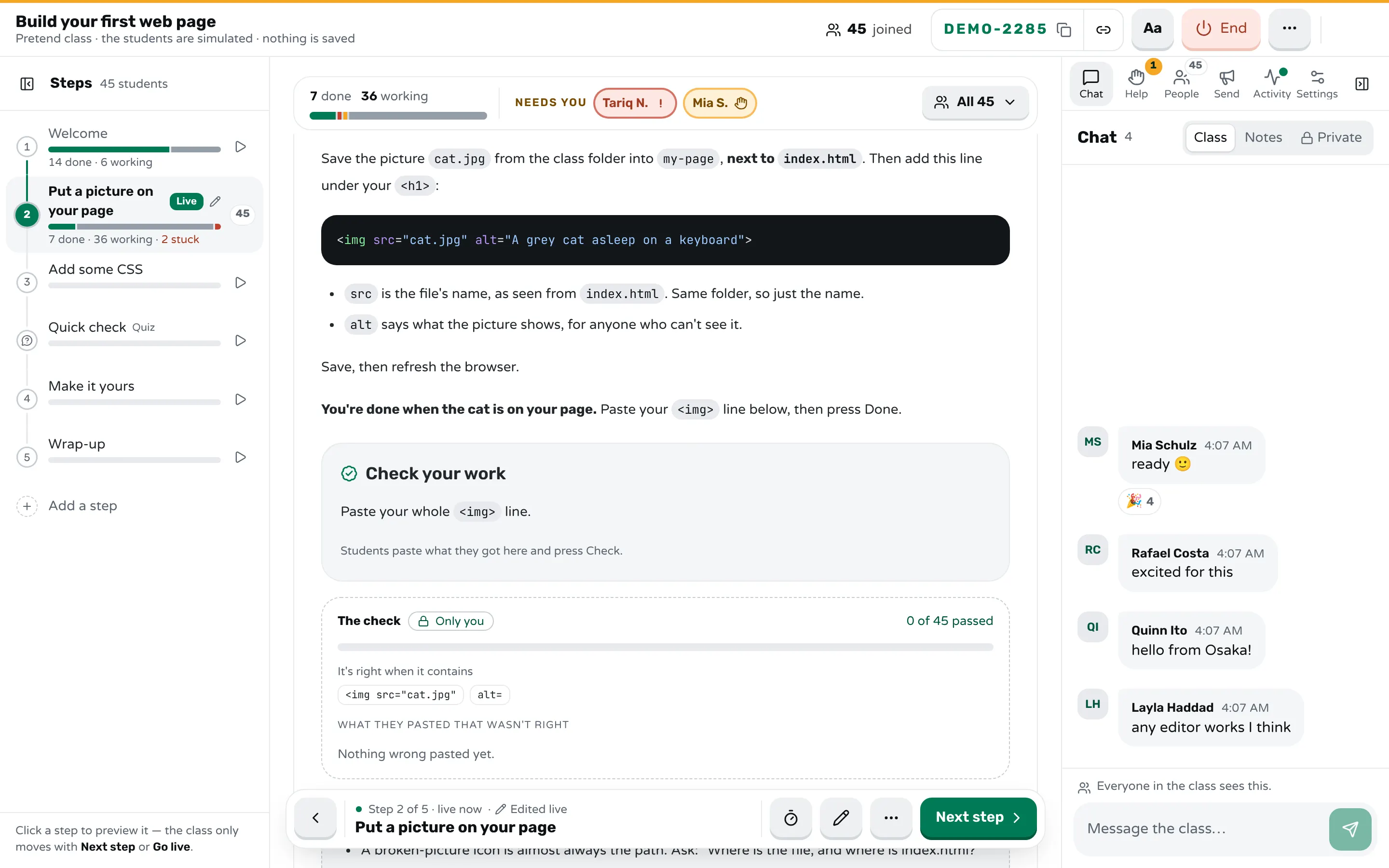
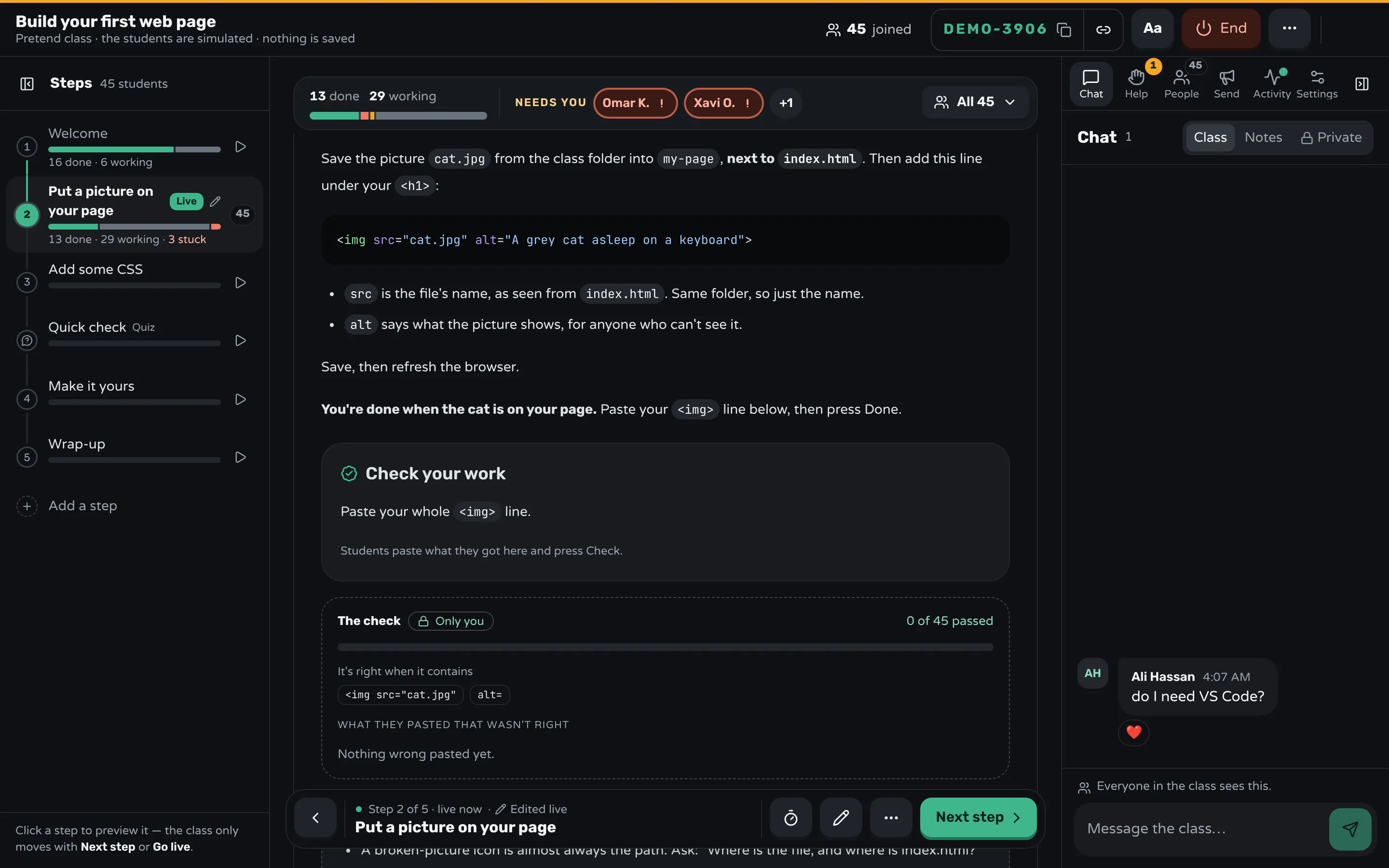
In Workshopy a lesson is a Markdown document, and each step is one heading. Students open the lesson on their own laptops with a join code, and you move the class through the steps. The live demo runs exactly this lesson: "Build your first web page", from an empty folder to a styled page.
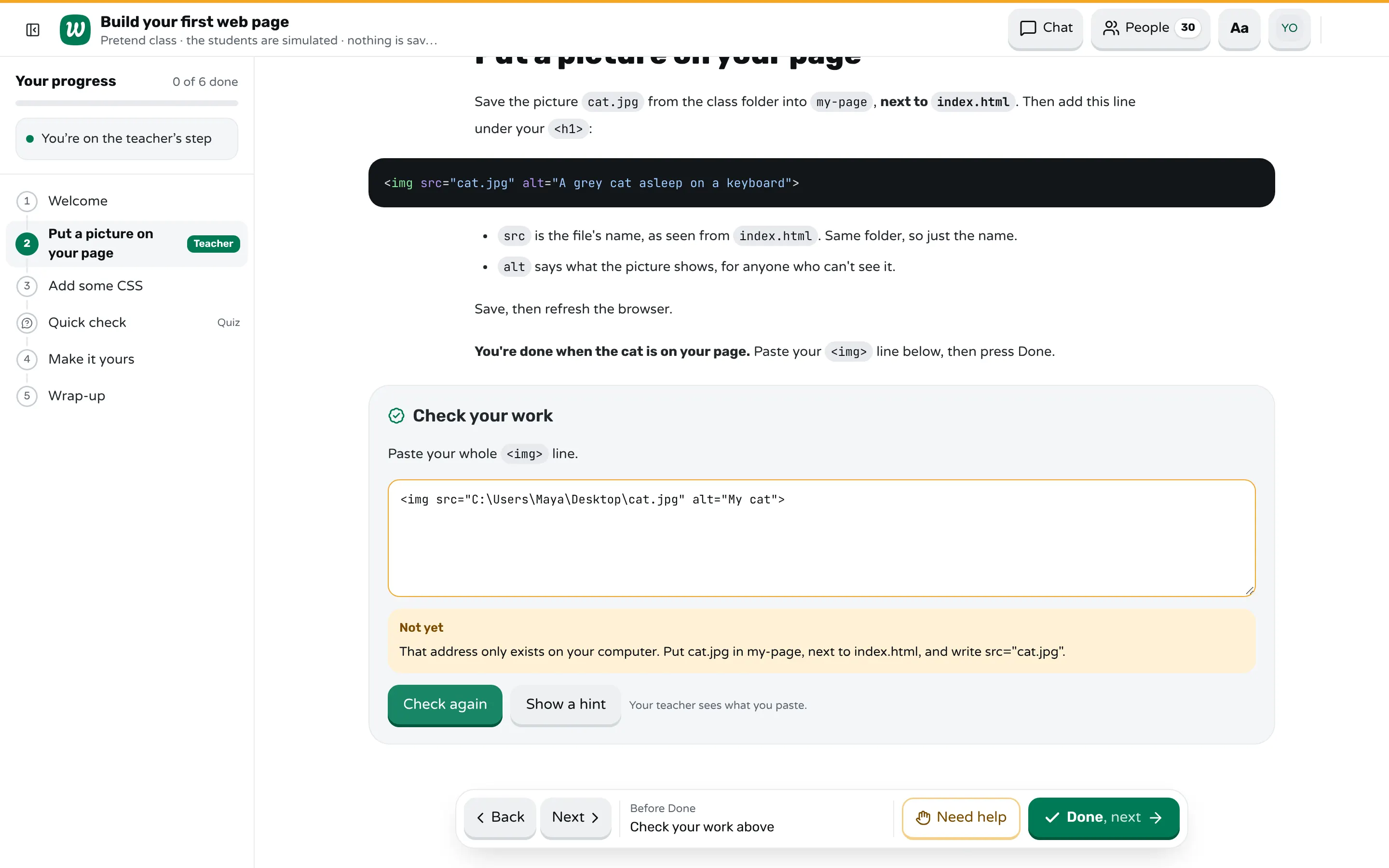
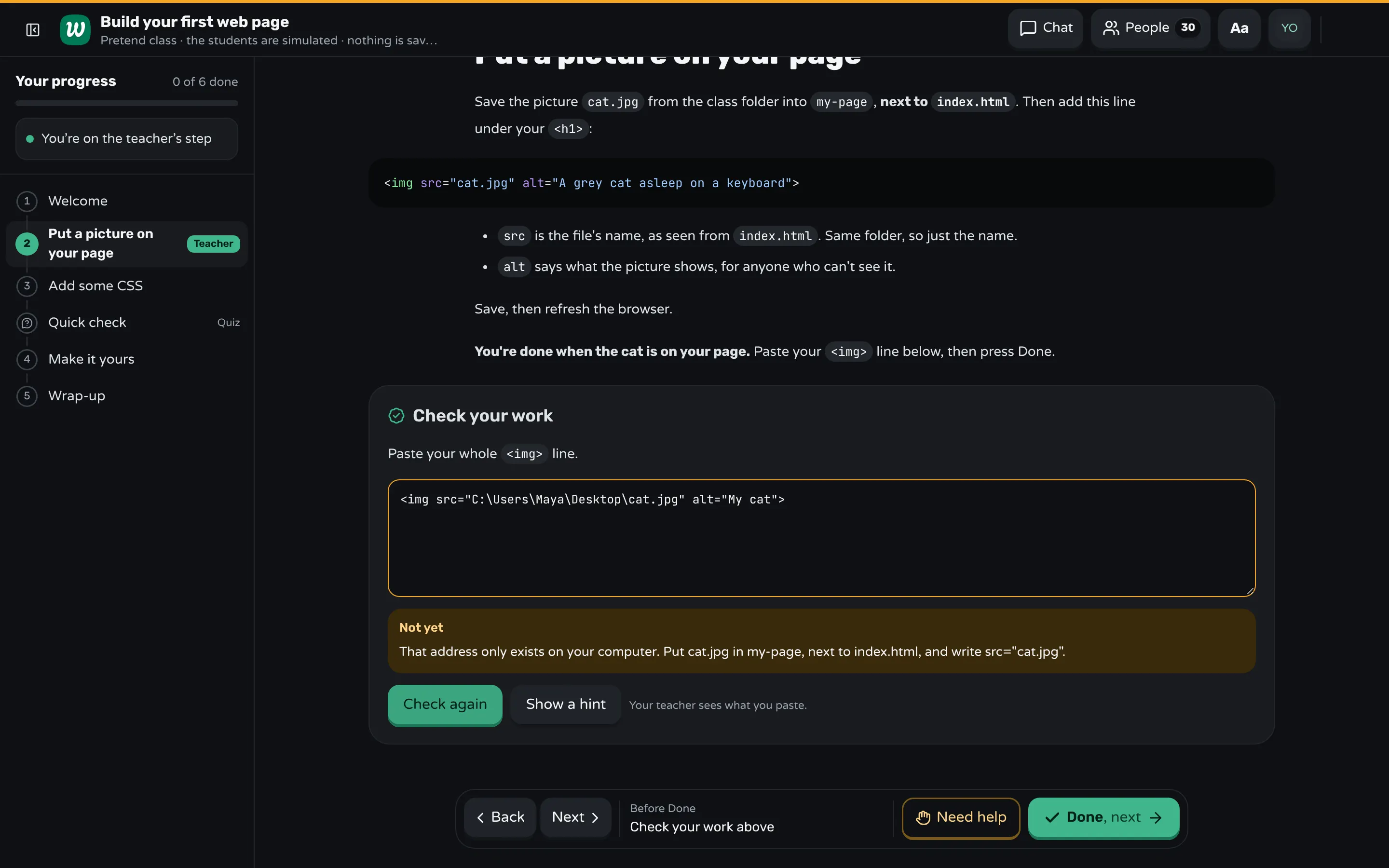
A check for every visible result. End a step with a ```check block. A student pastes their line, and the server checks it against your key. For each mistake you expect, a mistake: line holds what you would say, and the student reads it the moment they paste it:
```check
Paste your whole `<img>` line.

contains: <img src="cat.jpg"
contains: alt=

mistake: c:\ → That address only exists on your computer. Put cat.jpg in my-page, next to index.html, and write src="cat.jpg".
mistake: my-page/cat.jpg → index.html is already in my-page, so the address is just cat.jpg.
mistake: cat.jpeg → Look at the file's real name: it ends in .jpg, and the address must match it letter for letter.
hint: Copy the example line, then compare its src with the file's name in your folder.
```
On your screen, the same check counts who passed and groups the wrong pastes, so you see when ten students made the same mistake and can say it once to the room.
Who needs you. A student who is stuck presses Need help and says what they see. The bar above the step names the students who need you, so you walk to the right laptop instead of the first raised hand.
Your notes in the step. A ```teacher block holds what you want to remember, such as "a broken-picture icon is almost always the path", and students never see it.
A page to play with in the lesson. An interactive block runs HTML, CSS and JavaScript inside the step, sealed off from the rest of the page. The demo's "Make it yours" step uses one: students change the heading text and pick colours, and see the CSS it writes, before they copy it into their own file.
Sources
- Thomas H. Park, Brian Dorn and Andrea Forte, An Analysis of HTML and CSS Syntax Errors in a Web Development Course (2015)
- Thomas H. Park, Ankur Saxena, Swathi Jagannath, Susan Wiedenbeck and Andrea Forte, Towards a Taxonomy of Errors in HTML and CSS (2013)
- Miriam Posner, Teaching HTML & CSS (2011)
- MDN Web Docs, Debugging HTML
- MDN Web Docs, Debugging CSS
Frequently asked questions
Should I teach HTML before CSS?
Yes. Students need something on the page before there is anything to style. Start CSS once the page has a heading, a paragraph, a link and a picture, usually within the first hour.
What text editor should beginners use?
Any plain text editor works: VS Code, Notepad, or TextEdit set to plain text. VS Code helps with colours and closing tags, but installing it takes class time; decide before the lesson and put it in the setup instructions.
How long does it take to teach the basics of HTML and CSS?
A two-hour workshop is enough for a first page with headings, paragraphs, a link, a picture, a list and a few CSS rules. Layout, forms and responsive design each need lessons of their own.
Why doesn't my students' CSS do anything?
Usually one of four things: the file wasn't saved, the browser wasn't refreshed, the rule sits outside the <style> tag, or a property is misspelled. The browser ignores CSS it doesn't understand without an error, so open DevTools and look for a crossed-out line.
Should beginners use an online editor like CodePen?
It removes the file problems of the first ten minutes, which helps in a short session. Students then never learn to save, open and organise their own files, so switch to real files before the second lesson.
Keep reading
How to write lab instructions students can follow
Write one action per step, say what students should see after each one, and tell them what to do when their screen doesn't match.
8 min read · 31 Oct 2026
Hands-on & coding workshopsHow to teach debugging to beginners
Teach beginners to read the error, predict before they run, change one thing at a time, and follow a short routine before asking for help.
8 min read · 14 Nov 2026
Build lessonsHow to use worked examples in a lesson
Show a full solution, then one with a gap, then a task alone. When worked examples help, how to fade them, and when to stop showing.
7 min read · 15 Nov 2026
Ready-made lessons from the library
Intro to Git — Snapshots, Branches & Sharing
A short, hands-on first lesson in Git for complete beginners. Students build the mental model one idea at a time — snapshots, the three areas…
10 steps · Free
Teacher trainingMeet Workshopy — A Live, Interactive Product Tour
A live, interactive product tour of Workshopy for new users. It runs as a real Workshopy session, so the audience experiences the product as participants while…
16 steps · Free
Teacher trainingTrain the Trainer: How to Design a Hands-On Workshop
A train the trainer workshop on designing hands-on sessions: write objectives you can see, plan an hour of talks, exercises and checks, find who's stuck.
11 steps · Free
Learn any of them on your own, free, or copy one and teach it live. Browse the library
See it with a class of 24. No sign-up.
The live demo runs the real product with a simulated class. When you're ready, start free.